Best WordPress Backup Plugins for Website Protection (2026 Review)
The best WordPress backup plugins in 2026 combine automatic offsite storage, one-click restoration, and incremental backups so you’re never copying your entire site from scratch. For most site owners, a plugin that backs up both files and database on a daily schedule, stores copies away from your hosting server, and lets you restore a single…
The best WordPress backup plugins in 2026 combine automatic offsite storage, one-click restoration, and incremental backups so you’re never copying your entire site from scratch. For most site owners, a plugin that backs up both files and database on a daily schedule, stores copies away from your hosting server, and lets you restore a single file or the whole site in a few clicks is non-negotiable. If you only remember one rule, remember this: a backup that lives on the same server as your website is not a real backup, it disappears in the exact scenarios where you need it most, like a hacked account, a failed migration, or a host that shuts down your account. If that’s already happened to you, read our guide on how to recover a website after hosting expired.
Website recovery always starts the same way for us: someone reaches out after losing their site, and the first question we ask is “do you have a backup?” Too often the answer is no, or the backup is months old, or it was sitting in the same hosting account that just got wiped. A good backup plugin, set up correctly, is the difference between a five-minute restore and a multi-day recovery project, and if you’re already past that point, RecoverYourSite is built for exactly that situation.
This guide walks through what actually matters in a WordPress backup plugin, compares the leading options, and gives you a checklist for setting automatic backups up the right way.
Why a Dedicated WordPress Backup Plugin Beats Relying on Your Host
Most hosting providers offer some form of backup as part of their plans, and it’s tempting to assume that’s enough. In practice, host-provided backups have three recurring problems that show up constantly in website recovery work.
First, host backups are usually stored on the same infrastructure as your live site. If your hosting account is suspended, your server suffers a hardware failure, or your account is deleted (accidentally or due to a billing lapse), the backup often disappears along with everything else. We’ve worked with site owners whose “backup” was technically real but unreachable the moment it mattered, because it lived inside the same account that had just been locked.
Second, host backups are frequently full-server snapshots rather than granular, per-site backups. That means restoring a single page, a specific set of images, or a database table you accidentally overwrote isn’t possible, you’re stuck choosing between “everything from three days ago” or nothing. A dedicated plugin, by contrast, typically lets you browse backup contents and restore individual pieces.
Third, retention windows on host-level backups tend to be short, often just a handful of days. If you don’t notice a problem, a plugin quietly corrupting content, a hack that sits dormant before activating, until after that window closes, there’s nothing left to restore from. A dedicated backup plugin with configurable retention and offsite storage solves all three problems at once, which is why we recommend every WordPress site run one regardless of what the host provides. And if you’ve already lost a site with no backup, website restoration services are often the fastest path back.
Top WordPress Backup Plugins for 2026
There is no single “best” plugin for every site, the right choice depends on your site’s size, your technical comfort level, and your budget. Below is a comparison of the plugins we see most often doing this recovery work, evaluated on the factors that actually affect whether a restore succeeds when you need it.
| Plugin | Offsite Storage | Incremental Backups | One-Click Restore | Best For |
|---|---|---|---|---|
| UpdraftPlus | Yes (Dropbox, S3, Google Drive, and more) | Limited on free tier | Yes | Beginners wanting a free, reliable starting point |
| BlogVault | Yes (dedicated cloud, not your storage) | Yes | Yes, with staging | Sites that can’t tolerate downtime during restores |
| Jetpack VaultPress Backup | Yes (WordPress.com cloud) | Yes, real-time | Yes | Sites needing real-time, granular backups |
| Duplicator Pro | Yes (configurable) | No, full backups | Manual but thorough | Migrations and full-site cloning alongside backups |
| WP Time Capsule | Yes | Yes | Yes | Sites with frequent content changes and limited storage budgets |
A few notes on how to read that table. “Incremental backups” means the plugin only copies what changed since the last backup rather than re-uploading your entire site every time, this matters enormously for larger sites, both for how long backups take and how much storage they consume. “Offsite storage” means backups are pushed to a location separate from your hosting account, which is the single most important factor in whether a backup survives a hosting-level disaster. Real-time backup solutions like Jetpack VaultPress Backup capture changes as they happen, which reduces how much content you could lose between backup points, but they typically come with an ongoing subscription cost.
If your budget is the main constraint, UpdraftPlus’s free tier is a legitimate starting point, it covers the fundamentals of scheduled backups pushed to offsite storage like Google Drive or Dropbox, which is already a major improvement over no backup strategy at all. If your site generates revenue or handles transactions, the incremental and real-time options are worth the subscription cost, because the amount of content or order data you could lose between backups drops from a full day to minutes.
How to Choose and Configure the Right Backup Solution
Picking a plugin is only half the job. We see plenty of sites with a well-regarded backup plugin installed that still failed to restore properly, usually because of a configuration mistake rather than a flaw in the software itself. Use the checklist below when setting up automatic backups on any WordPress site.
- Confirm both files and database are included. Some plugins default to database-only backups. Your database holds your posts and settings, but your uploads, theme customizations, and plugin files live in the filesystem, you need both to fully restore a site.
- Set the schedule to match your update frequency. A daily news site needs daily backups at minimum; a static brochure site updated monthly can safely run weekly. Match the schedule to how much content you’re willing to lose, not to the plugin’s default setting.
- Point storage somewhere off your host. Connect the plugin to Dropbox, Google Drive, Amazon S3, or the plugin vendor’s own cloud storage. Never leave the only copy sitting in your WordPress uploads folder.
- Test a restore before you need one. Most backup failures are discovered during an actual emergency, which is the worst possible time to find out a backup is corrupted or incomplete. Use a staging site or a local environment to run a test restore at least once after setup.
- Set a retention policy you can afford. Keeping 30 days of daily backups uses more storage than keeping 7, but gives you a longer window to notice and fix problems that aren’t immediately obvious, like slow-moving malware or content that was quietly altered.
- Exclude what you don’t need. Large media libraries, cache folders, and log files bloat backup size without adding recovery value. Most plugins let you exclude specific directories, use that feature to keep backups fast and storage costs down.
- Get notified when backups fail. Enable email or Slack notifications for failed backup jobs. A silently failing backup schedule is functionally the same as having no backup at all.
One configuration detail that trips people up: automatic backups need somewhere to run. If your host restricts scheduled tasks (cron jobs) or your site gets very little traffic, WordPress’s default pseudo-cron system, which relies on visitor traffic to trigger scheduled events, may not fire reliably. For sites with low traffic, set up a real server-level cron job or use a third-party uptime/cron service to trigger backups on schedule rather than depending on visits alone.
Frequently Asked Questions
How often should I back up my WordPress site?
For most active sites, daily backups strike the right balance between storage cost and protection. E-commerce sites or anything processing transactions should consider real-time or hourly backups, since losing even a few hours of order data can mean real financial impact. A rarely updated brochure site can reasonably run weekly backups.
Is a free backup plugin good enough?
A free plugin that reliably performs scheduled, offsite backups is genuinely good enough for many small sites. The gap between free and paid tiers usually shows up in incremental backups, real-time capture, priority support, and automated restore tools, valuable for larger or business-critical sites, but not strictly required for a personal blog or small brochure site.
Can I use more than one backup plugin at once?
Running two backup plugins simultaneously is possible but usually unnecessary and can cause performance conflicts, since both will try to access your database and files on their own schedules. A better approach is one reliable primary plugin with offsite storage, plus periodic manual exports or your host’s built-in backup as a secondary safety net, not two automated systems fighting for resources.
What should I do if my backup plugin’s restore fails?
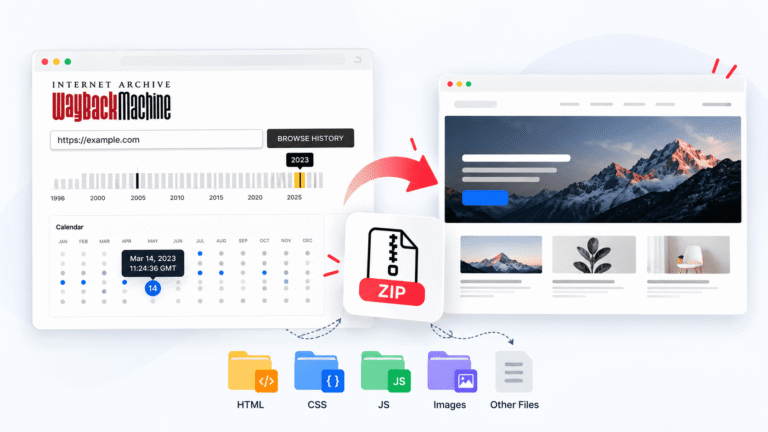
First, check whether the failure is a file permissions issue, a storage timeout, or a database import error, most plugins log the specific failure point. If the automated restore won’t complete, you can often manually extract the backup archive and import the database directly via phpMyAdmin or a similar tool, then upload the files via FTP. When a plugin-based restore fails entirely and no manual backup exists, tools like RecoverYourSite’s Wayback Machine downloader can sometimes recover lost content as a last resort though this rarely captures database-dependent functionality like user accounts or e-commerce data.
Do WordPress backup plugins protect against hacks?
A backup plugin doesn’t prevent a hack, but it makes recovery from one dramatically faster, assuming you have a clean backup from before the compromise occurred. This is another reason longer retention windows matter: if malware sits dormant for two weeks before activating, a 7-day retention policy won’t have a clean copy to restore from. Pair your backup plugin with a security plugin for malware scanning and hardening, since the two solve different problems. For a full cleanup walkthrough, see our guide on how to recover a hacked WordPress website.
Final Thoughts
The best backup plugin is the one that’s actually running, correctly configured, storing copies offsite, and tested at least once. Every plugin compared above will do the job if it’s set up properly, the failures we see in recovery work almost never come down to which plugin someone chose, and almost always come down to a backup that wasn’t offsite, wasn’t complete, or was never verified. Pick a plugin that fits your budget and technical comfort, for the full list of security and recovery tools we trust, check out this list of recommended tools, then spend the extra ten minutes confirming it actually works before you need it to.