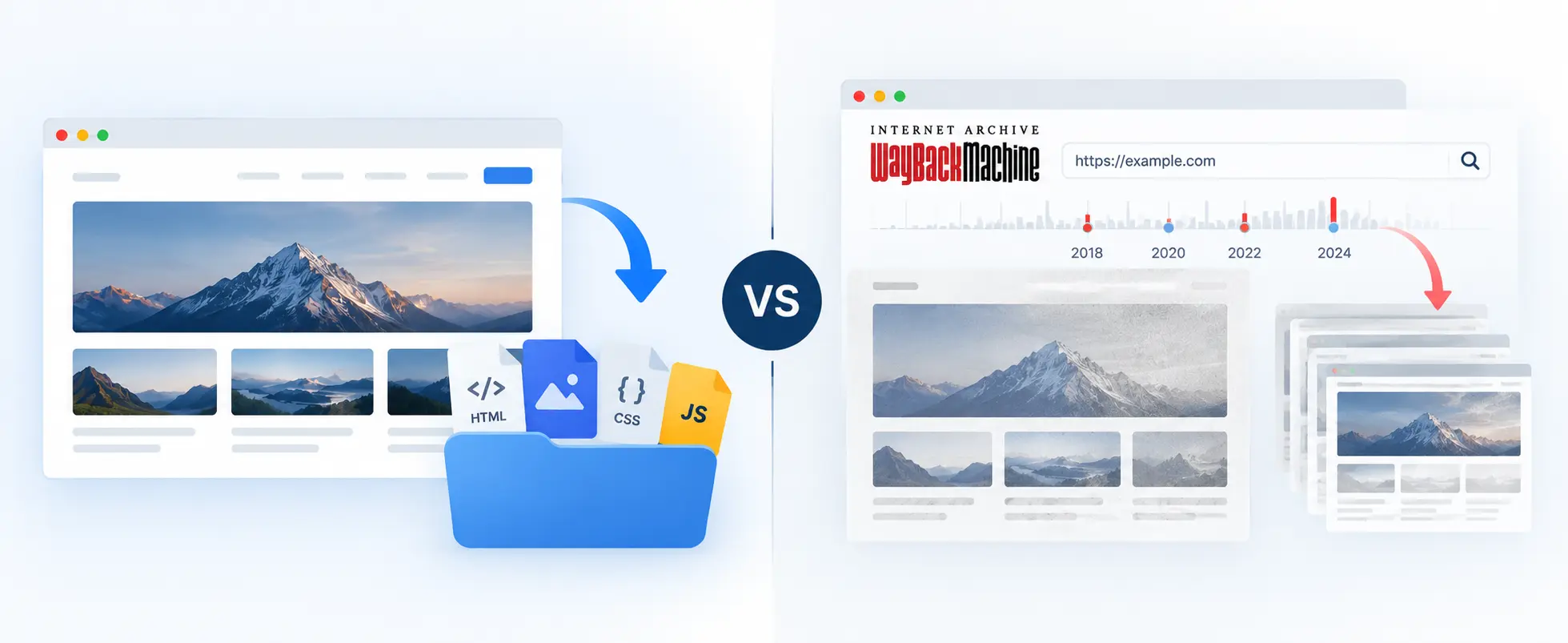
Website Downloader vs Wayback Machine: Which Tool to Use?
Website downloader or Wayback Machine? Here’s how to tell which tool actually fits your situation, whether your site is still live or already gone.
If your site is still live but you want a safety copy before a redesign or a server move, you need a different tool than if your site is already gone and all that’s left is what search engines crawled months ago. People searching for a “website downloader” and people searching for “Wayback Machine” are often trying to solve two different problems, even though they land on the same kind of page expecting the same kind of fix. Getting this wrong wastes hours. Pick the right tool first and the rest of the recovery or backup process goes a lot faster.
This guide breaks down what each tool actually does, where each one falls short, and which one fits your situation right now.
What a Website Downloader Actually Does
A Website Downloader crawls a site that is currently online and pulls down its pages, images, CSS, and scripts while the site is still reachable. It’s built for copying something that exists right now, not something that used to exist. If you can open the site in a browser today, a web downloader can usually grab it.
This matters most in a few specific situations: you’re about to redesign a site and want a full backup of the current version in case something breaks, you’re migrating to a new host and want an independent copy outside your hosting account, you’re cloning a client’s site into a staging environment for testing, or you just want an offline copy of something you don’t control and might lose access to later. In all of these cases the site is healthy and online. A site downloader just means you’re not depending on a single host, a single database, or a single login to keep that copy safe.
The tradeoff is that it only works while the site is up. If the server goes down, the domain lapses, or the host deletes the account before you run the crawl, there’s nothing left to download. That’s where the Wayback Machine comes in.
What the Wayback Machine Actually Stores
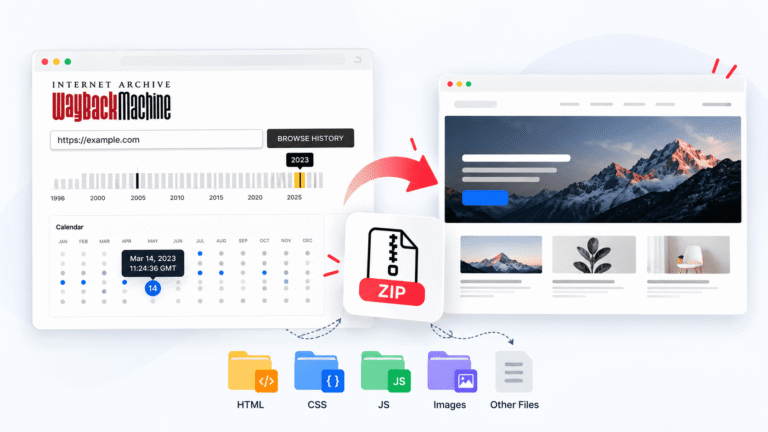
The Wayback Machine is the public search tool for the Internet Archive, and it works completely differently. Instead of crawling your site on demand, it relies on snapshots that were already taken, sometimes recently, sometimes years ago, by the Archive’s own automated crawlers or by someone manually submitting a URL. You’re not downloading the live site. You’re recovering a website from Archive.org based on whatever version happened to get captured.
That makes it the only option once a site is actually gone: the domain expired and someone else registered it, the hosting account got deleted, a hack wiped the files and there was no clean backup, or the business shut down years ago and nobody kept a copy. If you want to see what a page looked like, or download a website from the Wayback Machine and reconstruct it into working files, that’s the job this tool is built for.
It has real limits, though. Crawl depth varies wildly by site. Some pages get captured dozens of times a year; others are never captured at all, especially pages buried deep in a site’s structure, pages blocked by robots.txt at the time of the crawl, or pages that sit behind a login or a form submission. Images and stylesheets sometimes fail to archive even when the HTML did. An archive.org downloader can only hand you back what was actually saved, not what you wish had been saved.
The Core Difference, Side by Side
Think of it this way: a website downloader captures the present. The Wayback Machine preserves fragments of the past. One needs the site to be online right now. The other needs the site to have been online at some point before, and for a crawler to have actually visited the pages you care about.
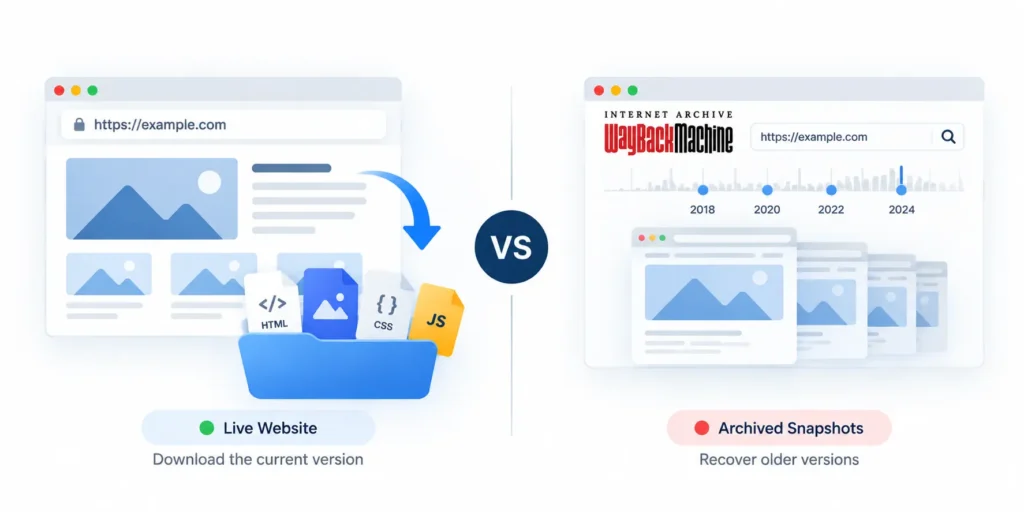
If your site is up and you’re being proactive, use a web downloader. If your site is down, deleted, or gone, you’re working with whatever history exists, and that history lives in the archive. There’s no overlap scenario where both tools do the same job equally well. They solve adjacent problems, not the same problem.
When a Website Downloader Is the Right Call
Reach for a site downloader when the clock hasn’t run out yet. A few common cases: you’re planning a redesign and want the current site preserved exactly as it is before anyone touches a template. You’re switching hosts and want a backup that doesn’t live inside the account you’re about to cancel. You inherited a client site with no documentation and need a working local copy to study before you make changes. Or you just found a competitor’s page, a reference design, or your own old project and want it saved for offline viewing without needing a live connection.
In every one of these, speed matters more than crawl history. You want today’s version, not last year’s.
When the Wayback Machine Is the Right Call
The archive becomes the only real option once the live site is unreachable. If hosting expired and the account got wiped before you could grab a backup, if a migration failed halfway through and corrupted the database, or if the domain lapsed and now points somewhere else entirely, there’s nothing left to crawl. At that point you’re not backing anything up. You’re trying to piece together whatever snapshots exist and rebuild the site from them, page by page.
This is also the right move for legal or research reasons, like proving what a page said on a specific date, or recovering content from a site that changed ownership and no longer resembles what it used to be.
Using Both Together
The smartest approach doesn’t pick one tool forever. It uses a website downloader as routine insurance while a site is healthy, and keeps the Wayback Machine as the fallback for anything that slipped through the cracks before that insurance existed. A lot of site owners only think about backups after something’s already broken, which means their first real backup ends up being whatever Archive.org happened to capture. RecoverYourSite.com’s recovery tool covers that gap either way, whether you need a live crawl today or a reconstruction pulled from archived snapshots.
If you’ve never dealt with either process before, our full walkthrough on how to download a website from the Wayback Machine covers the step-by-step for archive recovery specifically, including what to do when certain pages or images didn’t get saved.
Frequently Asked Questions
Can a website downloader grab a site that’s already offline?
No. A live site downloader needs the site to respond to a request right now. If it’s offline, suspended, or deleted, you’ll need the Wayback Machine instead.
Does the Wayback Machine save every page of a website?
No. Coverage depends on how often the Archive’s crawlers visited the site and whether specific pages were blocked, buried deep in the site structure, or behind a login. Some pages have dozens of snapshots; others have none.
Which tool is better for backing up my own site before a redesign?
A website downloader, since your site is online and you want today’s exact version, not whatever got archived months ago.
Can I recover images and files, not just the HTML?
Usually yes with a live downloader, since it’s pulling everything the browser can see. With the Wayback Machine it depends on whether the Archive’s crawler successfully captured those assets at the time, which isn’t guaranteed.
Is it legal to download a website this way?
Downloading your own site, or a site you have rights to, is fine either way. Downloading someone else’s live site without permission raises different questions, and the Wayback Machine’s own terms govern how its archived snapshots can be used.
What if my domain expired and I never made a backup?
That’s exactly the scenario the Wayback Machine exists for. Check whether your old pages were archived, then work through a reconstruction process to rebuild the site from those snapshots.
Bottom Line
Don’t overthink which one to reach for. If you can load the site in a browser right now, use a website downloader and get a current copy while you still can. If the site is already down, deleted, or expired, your only path back is through whatever the Wayback Machine managed to capture before it disappeared. Knowing which situation you’re in before you start saves you from wasting time on the wrong tool, and it’s usually obvious within the first thirty seconds of trying.