
WordPress White Screen of Death: How to Fix It and Restore Your Site
The White Screen of Death (WSOD) is almost always a PHP fatal error, not a lost website. In most cases you can fix it in minutes by increasing your PHP memory limit, deactivating plugins via FTP or phpMyAdmin, switching to a default theme, and checking your host’s error log for the exact line that’s failing….
The White Screen of Death (WSOD) is almost always a PHP fatal error, not a lost website. In most cases you can fix it in minutes by increasing your PHP memory limit, deactivating plugins via FTP or phpMyAdmin, switching to a default theme, and checking your host’s error log for the exact line that’s failing. If the blank screen followed a failed update, migration, or hack and no backup exists, the page may still be recoverable through a cached version or an archived snapshot before you rebuild from scratch.
Below is a full breakdown of why the White Screen of Death happens, how to diagnose it without guessing, and the exact recovery sequence to get your site back online, plus what to do if your usual backup isn’t available.
What Causes the White Screen of Death in WordPress
A blank white page with no error message, no header, and no footer is WordPress’s way of failing silently. By default, PHP is configured to hide fatal errors from visitors rather than display them, so instead of a helpful message you just get a stark white page. The underlying cause is almost always one of the following:
- A plugin or theme update conflict. The most common trigger. A plugin calls a function that no longer exists in a newer PHP version, or two plugins define the same function name and collide.
- PHP memory exhaustion. Your site tries to load more scripts and processes than the hosting plan’s memory limit allows, and PHP simply stops mid-request.
- A corrupted core file. An interrupted update, a bad FTP transfer, or a disk error can leave a WordPress core file incomplete or missing.
- Theme functions.php errors. A stray character, missing semicolon, or unclosed bracket added during a customization will break the entire front end, not just one page.
- Server-side resource limits. Shared hosting environments sometimes kill a process that runs too long or uses too much CPU, which can present as a blank screen rather than a timeout message.
The good news: because WSOD is a code-level failure rather than data loss, your posts, pages, and database are usually untouched. The fix is almost always about isolating which file or plugin is throwing the fatal error, not restoring lost content.
How to Fix a WordPress White Screen of Death (Step-by-Step)
Work through these steps in order. Most white screens resolve by step three or four, don’t skip ahead to a full restore until you’ve ruled out the quick fixes.
1. Turn on debug mode to see the real error
Connect via FTP or your host’s file manager, open wp-config.php, and add the following above the line that reads “That’s all, stop editing!”:
define( 'WP_DEBUG', true );define( 'WP_DEBUG_LOG', true );define( 'WP_DEBUG_DISPLAY', false );
Reload the site, then check the new wp-content/debug.log file. It will name the exact plugin, theme file, and line number causing the fatal error, this turns a blind guessing game into a five-minute fix.
2. Deactivate all plugins
If you can’t reach wp-admin, rename the /wp-content/plugins folder to something like plugins-disabled via FTP. This deactivates every plugin at once. If the site comes back, rename the folder back and reactivate plugins one at a time, reloading the site after each one, until the white screen returns, that’s your culprit.
3. Switch to a default theme
If deactivating plugins didn’t help, the theme is likely the problem. Via phpMyAdmin, find the wp_options table and change the template and stylesheet rows to a default theme name like twentytwentyfour. Alternatively, rename your active theme’s folder via FTP so WordPress is forced to fall back to a default theme automatically.
4. Increase the PHP memory limit
Add this line to wp-config.php:
define( 'WP_MEMORY_LIMIT', '256M' );
If your host enforces a hard PHP memory cap below that, you’ll need to raise it through your hosting control panel or contact support, no amount of WordPress-side configuration can override a server-level limit.
5. Restore from a recent backup
If none of the above resolves it, or the debug log points to a corrupted core file, roll back to the last known-good backup through your host’s control panel or backup plugin. This is the fastest path back to a working site when the cause is deeper than a single plugin conflict.
6. No backup available? Pull the last working version from an archive
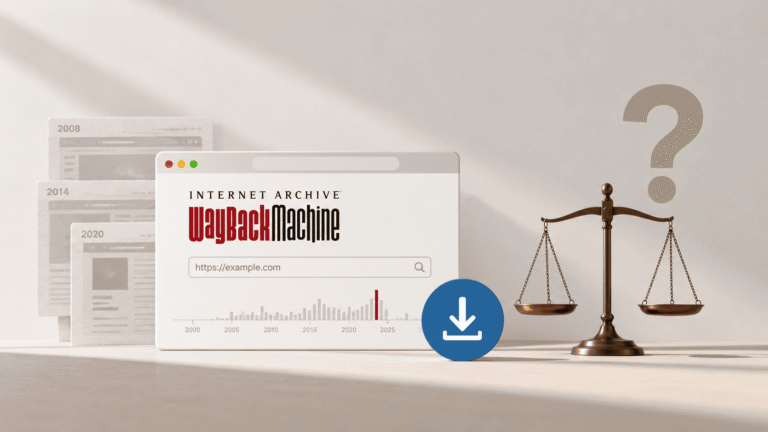
This is the step most guides skip. If the white screen followed a bad migration, an expired host backup, or a hack that corrupted your database, and you have no current backup, your last publicly visible version of the site may still exist in the Wayback Machine. RecoverYourSite’s website downloader can pull those archived snapshots and package the recoverable pages and files so you have a real starting point to rebuild from, rather than starting completely from scratch.
It won’t recover database tables like user accounts or WooCommerce order history, but for content, page structure, and text, it can get your old website files back as a ZIP you can rebuild from quickly.
White Screen of Death: Diagnostic Checklist
| Symptom | Likely Cause | First Thing to Try |
|---|---|---|
| White screen appeared right after a plugin update | Plugin/PHP version conflict | Deactivate the plugin via FTP |
| White screen appeared after a theme update or edit | Broken functions.php or template file | Switch to a default theme |
| Only certain pages are blank, not the whole site | A specific template or widget error | Check debug.log for the affected template |
| Site worked fine, then went blank with no changes made | Server resource limit or expired PHP memory cap | Raise WP_MEMORY_LIMIT or contact your host |
| Admin dashboard is also blank | Core file corruption or failed auto-update | Re-upload fresh WordPress core files via FTP |
| No backup exists and the cause is unclear | Possible data loss on top of the error | Check archived snapshots before rebuilding |
Preventing the White Screen of Death Going Forward
Once your site is back up, take a few minutes to make the next incident shorter, or avoid it altogether.
- Enable staging environments so plugin and theme updates run on a copy of your site before touching production.
- Set up automated daily backups through your host or a dedicated backup plugin, stored offsite rather than on the same server.
- Update plugins and themes one at a time rather than in bulk, so a conflict is easy to isolate.
- Keep PHP and WordPress core versions current, outdated PHP versions are a frequent source of plugin incompatibility.
- Review this list of recommended hosts if your current plan keeps hitting memory or resource ceilings during routine updates.
If you’d rather not troubleshoot this yourself every time it happens, RecoverYourSite.com’s website restoration services can handle diagnosis and recovery directly, including pulling archived content when a current backup isn’t available.
Frequently Asked Questions
Does the White Screen of Death mean my website data is gone?
No. In the vast majority of cases, your database and files are intact, WordPress is just failing to execute a piece of code and defaulting to a blank page. Data loss is only a real concern if the white screen followed a hack, a failed migration, or a hosting account issue that also damaged the database.
Can I fix a white screen without FTP access?
If wp-admin is still reachable, yes, you can deactivate plugins and switch themes from the dashboard. If both the front end and admin area are blank, you’ll need FTP, SSH, or your host’s file manager to make changes directly to the files.
How long does it typically take to fix a white screen of death?
Most plugin or memory-related white screens are resolved within 15-30 minutes once debug logging is enabled. Core file corruption or cases requiring a full restore from backup or archive can take a few hours, depending on site size.
What if my host says everything looks fine on their end?
That usually means the error is application-level (WordPress, a plugin, or a theme) rather than server-level. This guide’s debug-log step will isolate it even when your host’s server monitoring shows no issues, since hosting dashboards don’t typically surface PHP application errors.
What could be causing a white screen of death (WSOD) on my WordPress website?
The most common causes are a plugin or theme conflict, a PHP memory limit being hit, a corrupted .htaccess file, or a failed WordPress update. In most cases, a recently installed or updated plugin is the culprit.
For a deeper look at how archived recovery works when a backup isn’t an option, RecoverYourSite has a breakdown at https://recoveryoursite.com