Theme Update Broke Your WordPress Site? Here’s How to Fix It
A theme update broke your WordPress site? Follow this step-by-step guide to diagnose the cause, restore your previous theme, and get back online fast.
Quick Answer
If your website broke right after a theme update, the fastest fix is almost always to roll back to the previous theme version or switch to a default WordPress theme (like Twenty Twenty-Four) to confirm the theme is the cause. From there, restore the old theme files via FTP or your host’s file manager, check your child theme and custom CSS for compatibility, and only reapply the update once you’ve tested it on a staging site. In most cases, a full recovery takes 15 to 60 minutes if you have a recent backup, or a few hours if you’re rebuilding customizations from scratch.
A theme update is supposed to be routine maintenance: better security, new features, bug fixes. Then you click “Update Now,” refresh your site, and instead of a polished homepage you’re staring at the white screen of death, a jumbled layout with no styling, or a fatal error message. It’s one of the most common ways a working WordPress site suddenly stops working, and it catches site owners off guard because updates feel like the “safe” thing to do.
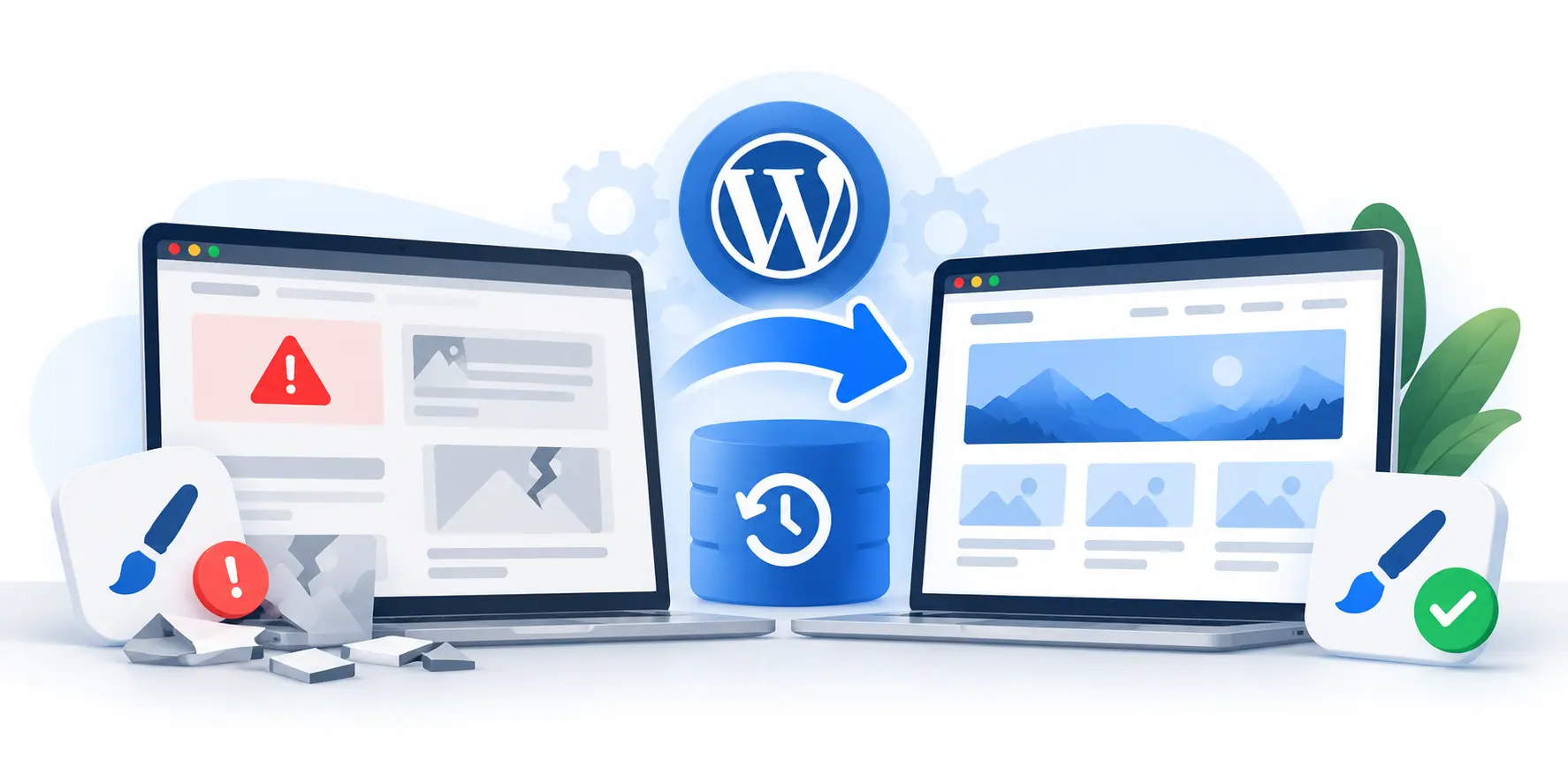
The good news is that theme-update failures are rarely permanent and rarely involve any actual data loss. Your posts, pages, media, and database are untouched only the presentation layer broke. This guide walks through why it happens, how to restore your site quickly, and how to update safely going forward so this doesn’t happen again.
Why Theme Updates Break Websites
Theme updates don’t fail randomly there’s almost always a specific, identifiable cause. Understanding which one applies to your situation saves you from guessing your way through the fix.
Direct edits to the parent theme. This is the single most common cause. If you or a previous developer edited theme files directly (functions.php, style.css, template files) instead of using a child theme, every one of those customizations gets overwritten the moment the theme updates. The update isn’t “breaking” anything technically, it’s replacing your customized files with fresh ones, and whatever functionality depended on your edits simply disappears.
Incompatible plugins. Page builders, custom field plugins, and SEO tools often hook directly into theme functions and template files. When a theme update changes those hooks, function names, or template structures, dependent plugins can throw fatal errors or simply stop rendering content correctly.
PHP version mismatches. Newer theme versions sometimes require a newer minimum PHP version than your hosting environment provides. If the theme’s updated code uses PHP syntax or functions your server doesn’t support, you’ll typically see a fatal error referencing a specific PHP function or an “unexpected token” syntax error.
Removed or renamed template files and functions. Major theme version changes sometimes restructure the entire template hierarchy or deprecate functions the developer used elsewhere in the site. If your homepage template, a custom page template, or a shortcode relied on something the new version removed, that specific feature or page will break while the rest of the site stays fine.
Interrupted update process. Less commonly, the update itself gets interrupted, a server timeout, a connection drop, or a memory limit exceeded during the file transfer. This can leave the theme in a half-updated state with some files on the old version and some on the new, which produces unpredictable, often severe breakage.
Step-by-Step: Restore Your Site After a Broken Theme Update
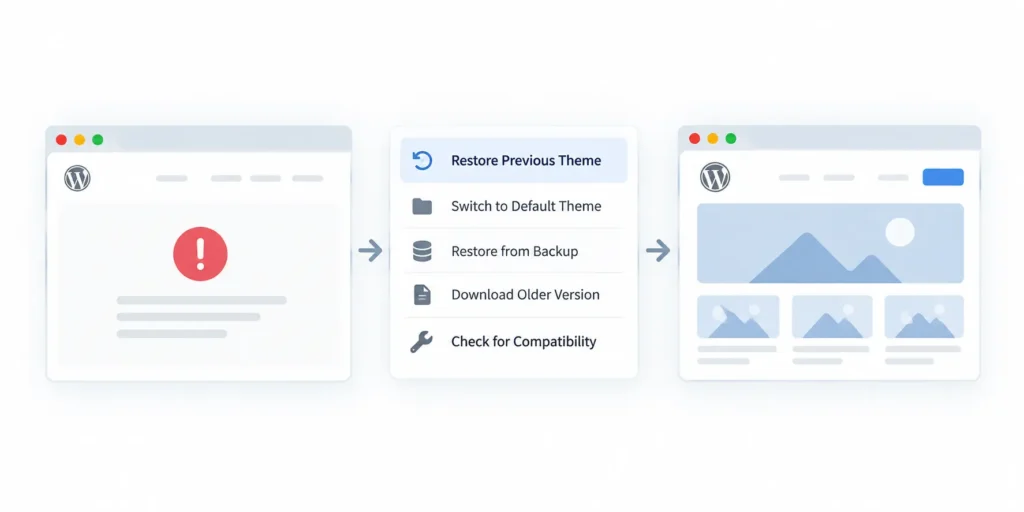
Work through these steps in order. Most sites are recoverable within the first two or three steps.
- Switch to a default theme to isolate the problem. If you can still reach wp-admin, go to Appearance > Themes and activate a default WordPress theme (Twenty Twenty-Four, Twenty Twenty-Three, or similar). If your site loads normally, you’ve confirmed the theme is the cause, not a plugin or the database. If you’re locked out of wp-admin entirely because of a fatal error, skip to the next step.
- If you’re locked out, rename the theme folder via FTP or File Manager. Connect to your site via FTP, SFTP, or your host’s File Manager and navigate to wp-content/themes/. Rename the broken theme’s folder (for example, from “mytheme” to “mytheme-broken”). WordPress will automatically fall back to a default theme, and your site and wp-admin access should come back immediately. This is the fastest recovery step available and works even when the site is completely down.
- Restore the previous theme version from backup. If you have a recent backup (from your host, a backup plugin, or a manual export), restore just the theme folder rather than the entire site, this avoids losing any content changes made since the backup was taken. Most backup plugins let you restore individual components rather than a full-site rollback. If your backup is missing or the damage goes beyond your theme files, professional website restoration services may help you recover the affected parts of your site.
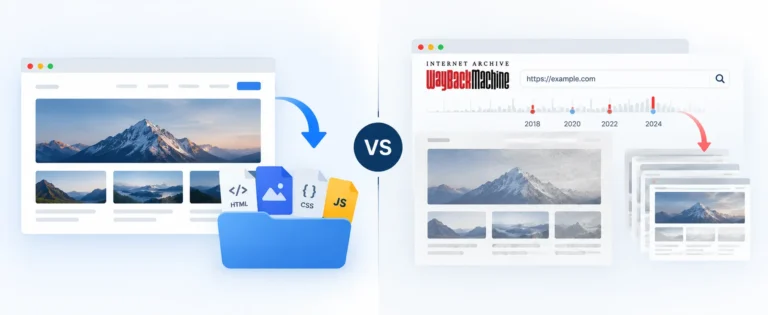
- No backup? Download the previous theme version manually. If the theme is from WordPress.org’s theme repository, older versions are often available under the “Advanced View” or version history section of the theme’s page. If it’s a premium theme, check your purchase account (ThemeForest, the developer’s site, etc.) for a version archive, or contact the theme developer’s support directly, most keep old versions available specifically for this scenario. If you’ve also lost access to your original website content and have no usable backup, RecoverYourSite can help retrieve available archived pages from the Wayback Machine. It won’t recover your original WordPress theme’s PHP files or database, but it can help you recover archived page content and design assets.
- Check the error log for the exact cause. Before reactivating anything, look at your site’s error log (accessible via your host’s control panel, or in wp-content/debug.log if WP_DEBUG logging is enabled). A specific error message, a missing function, a PHP version conflict, an undefined variable tells you exactly what broke instead of leaving you to guess.
- Reapply your customizations through a child theme. If your styling or functionality lived in direct edits to the parent theme, this is the moment to move those customizations into a child theme instead. A child theme’s files are never touched by parent theme updates, which permanently solves this specific failure mode going forward.
- Clear all caching layers. After restoring the theme, clear your WordPress caching plugin, your host’s server-level cache, and your CDN cache (Cloudflare or similar) if you use one. A stale cache can make a fixed site continue to display the broken version for visitors.
- Test thoroughly before calling it resolved. Check the homepage, a blog post, a page built with any page builder in use, the contact form, and the checkout flow if it’s an e-commerce site. Theme issues frequently affect specific templates or features rather than the entire site uniformly.
Troubleshooting Checklist and Common Questions
Use this checklist to work through the most frequent symptoms and their likely causes before you restore anything.
| Symptom | Likely Cause | First Action |
|---|---|---|
| White screen, no error message | PHP fatal error, often a memory limit or missing function | Enable WP_DEBUG or check the host’s error log |
| Site loads but has no styling (unstyled HTML) | Stylesheet failed to enqueue, or CSS file path changed in the update | Check Appearance > Theme File Editor is inaccessible; inspect page source for missing style.css link |
| Specific fatal error naming a function | A plugin or child theme calling a function the new theme version removed | Search the error text plus the theme name to confirm; contact the plugin developer if needed |
| Admin dashboard broken but front end fine | An admin-only theme feature (customizer panel, theme options page) changed | Access the site via FTP to rule out a full lockout; try a different admin page |
| Only one page or template is broken | A custom page template or shortcode was removed or renamed in the update | Identify which template the page uses and compare to the new theme’s template list |
| Site works on desktop but not mobile (or vice versa) | Responsive CSS or a mobile-specific template changed | Test in an incognito window on both device types before assuming full breakage |
Frequently Asked Questions
Will I lose my content if I roll back the theme?
No. Themes control presentation, not content. Your posts, pages, media library, and database are stored separately and are not affected by activating a different theme or rolling back a theme version.
Can I just delete the broken theme instead of renaming it?
You can, but renaming is safer and reversible. Renaming the folder deactivates the theme without deleting any of its files, so if you later find you need something from it like a child theme’s parent it’s still there.
Why didn’t I get a warning before the update ran?
WordPress doesn’t test theme updates against your specific customizations, plugins, or server environment before installing them. That compatibility check is the site owner’s or developer’s responsibility, which is exactly why a staging environment matters.
Should I turn off automatic theme updates after this?
For any theme you’ve customized directly, or any production site without a staging workflow, disabling automatic updates and applying them manually after testing is the safer default. You lose a small amount of convenience but gain control over timing and the ability to test first.
How do I know if it’s the theme or a plugin?
Switch to a default WordPress theme without deactivating any plugins. If the site works, the theme was the cause. If it’s still broken, deactivate plugins one at a time (starting with any that were recently updated alongside the theme) to isolate the conflict.
Preventing This From Happening Again
Recovering from a broken theme update is manageable, but the real fix is making sure you don’t need to do it again. A few habits eliminate nearly all theme-update risk:
- Never edit a parent theme’s files directly always use a child theme for any custom code or styling changes.
- Keep at least one recent full backup, including the database and files, taken before any update is applied. If you’re reviewing your backup setup, explore this list of recommended tools to find useful options for protecting your website.
- Test updates on a staging copy of your site before applying them to the live version, especially for sites with page builders or heavy customization.
- Read the theme’s changelog before updating major versions developers usually flag breaking changes and minimum PHP requirements there.
- Keep your PHP version current and compatible with your theme’s stated requirements, and confirm compatibility before major updates.
- Update one thing at a time, theme, then plugins, then core rather than letting everything update simultaneously, so that if something breaks, you know exactly what caused it.
A broken theme update feels alarming in the moment, especially if it takes your site fully offline, but it’s one of the most recoverable situations in WordPress because your content and database are never touched. Isolate the cause, restore the previous theme version or move to a child theme setup, and put a staging workflow in place so the next update is a non-event instead of an emergency.