Plugin Conflict Causing Website Crash? Diagnose and Fix It
A website that was working fine yesterday and is showing a white screen of death, a fatal error, or a broken layout today is one of the most common support requests in WordPress. In the vast majority of cases, the trigger isn’t a hack or a server outage, it’s a plugin conflict. Two plugins fighting…
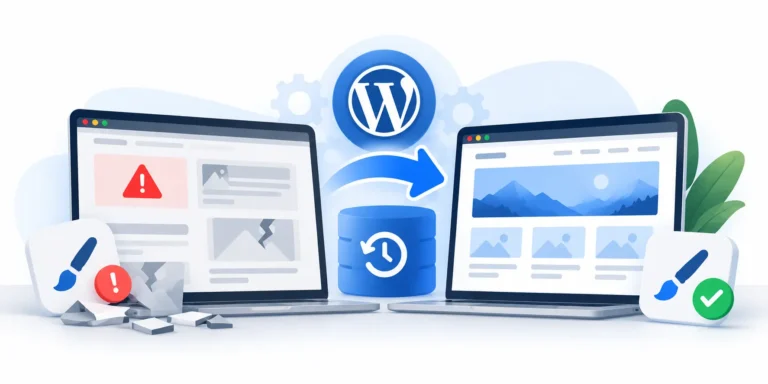
A website that was working fine yesterday and is showing a white screen of death, a fatal error, or a broken layout today is one of the most common support requests in WordPress. In the vast majority of cases, the trigger isn’t a hack or a server outage, it’s a plugin conflict. Two plugins fighting over the same function, a plugin that isn’t compatible with your current PHP or WordPress version, or a single update that shipped a bug can all take a healthy site down in seconds. The good news is that plugin conflicts are also some of the easiest crashes to fix, once you know how to isolate the cause.
If your WordPress site crashed after installing, updating, or activating a plugin, the fastest fix is to deactivate all plugins and reactivate them one at a time until the error returns. You can do this from the WordPress dashboard if you can still log in, or by renaming the plugins folder through FTP, File Manager, or WP-CLI if you’re locked out entirely. Once you’ve identified the problem plugin, disable it, check the site, and then look for an updated version, a lightweight alternative, or a fix from the developer before reactivating it. Most plugin-related crashes are resolved within 10-15 minutes using this process, with no data loss and no need to restore a full backup.
How to Tell a Plugin Is the Cause of Your Website Crash
Before diagnosing anything, it helps to confirm you’re actually dealing with a plugin conflict and not a theme issue, a hosting problem, or a hack. A few signals point strongly toward a plugin as the cause.
The crash appeared immediately after you installed a new plugin, updated an existing one, or changed a plugin’s settings. This is the single most reliable indicator, timing rarely lies. If your site was fine five minutes ago and broke right after clicking “Update” on a plugin, that plugin (or something it depends on) is almost certainly the trigger.
You’re seeing a PHP fatal error that names a specific file path inside /wp-content/plugins/. WordPress error messages are often more helpful than they look. A message like “Fatal error: Uncaught Error: Call to undefined function in /wp-content/plugins/some-plugin/includes/file.php” is telling you exactly which plugin’s code failed. If WP_DEBUG isn’t already showing you this detail, your host’s error log (usually accessible from cPanel, Plesk, or your hosting dashboard) will have the same information.
The site shows a white screen with no visible error at all, commonly called the White Screen of Death. This happens when PHP hits a fatal error but your site isn’t configured to display it. It’s frustrating because there’s no obvious clue on the page itself, but it’s still very often plugin-related, especially after a recent update.
Only part of the site is affected, for example, the front end loads but the dashboard doesn’t, or one specific page type (like WooCommerce product pages) throws errors while others work fine. This kind of partial failure is a strong sign that a specific plugin tied to that functionality is misbehaving, rather than a server-wide issue.
By contrast, if the crash happened without any plugin changes, coincided with a server migration, or shows database connection errors, the cause is more likely hosting-related or database corruption rather than a plugin, those situations call for a different troubleshooting path.
Diagnosing Which Plugin Is Causing the Crash
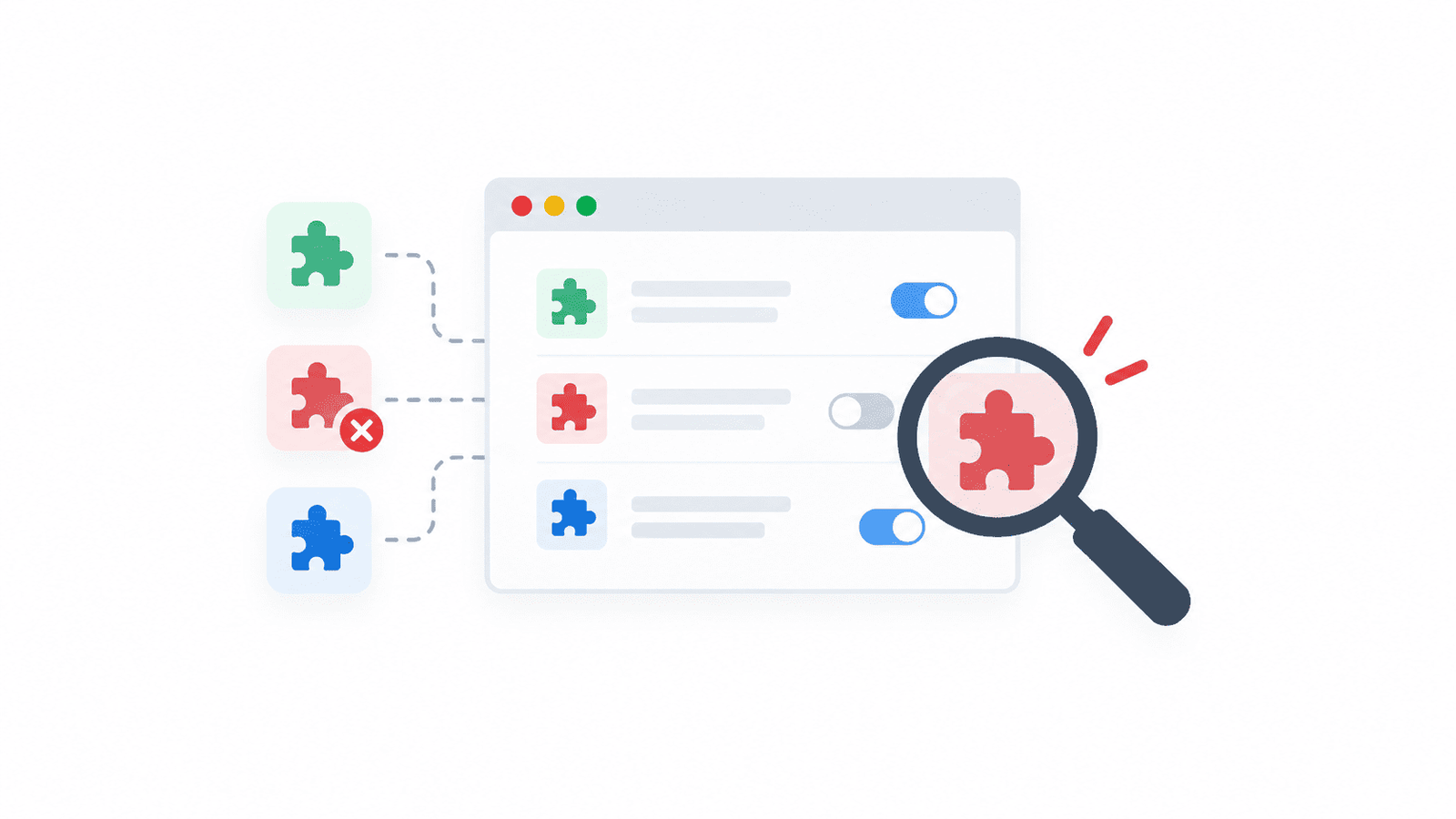
Once you suspect a plugin conflict, the goal is to isolate the exact plugin (or combination of plugins) responsible. There are two paths depending on whether you can still access wp-admin.
If you can still log into wp-admin
Go to Plugins in your dashboard and deactivate all plugins at once using the bulk actions dropdown. Reload the site. If the error disappears, you’ve confirmed a plugin is the cause, and it’s time to find out which one.
Reactivate your plugins one at a time, checking the site after each activation. When the error reappears, the plugin you just reactivated is the culprit, or at minimum, the trigger for the conflict. Keep in mind that some conflicts only occur when two specific plugins are both active together, even if each works fine on its own, so if reactivating plugins individually doesn’t reproduce the issue, try reactivating them in pairs based on overlapping functionality (for example, two SEO plugins, two caching plugins, or two page builders rarely coexist cleanly).
If you’re using a staging site or a local copy, do this diagnostic process there first rather than on the live site, so visitors aren’t seeing a broken page while you troubleshoot.
If you’re locked out of wp-admin entirely
When the crash prevents you from reaching the dashboard at all, you’ll need file-level access through FTP/SFTP, your host’s File Manager, or WP-CLI over SSH.
Navigate to /wp-content/plugins/ and rename the folder itself, for example, to plugins-disabled. WordPress will treat every plugin as deactivated because it can no longer find the expected folder, and your site should load again (with reduced functionality, since no plugins are running). Rename the folder back to plugins, then go into it and rename individual plugin folders one at a time, reloading the site after each rename, until the error returns. The last plugin you renamed is the one causing the crash, leave that one renamed (disabled) and rename everything else back.
If you have SSH access, WP-CLI makes this faster: wp plugin deactivate --all deactivates everything in one command, and wp plugin activate <plugin-name> lets you bring plugins back individually without needing dashboard access at all.
As a last resort, if neither FTP nor SSH is available, some hosts allow you to deactivate plugins by editing the wp_options table directly through phpMyAdmin, setting the active_plugins row to an empty array. This works but should be treated as a fallback, since editing the database directly carries more risk of a typo causing further problems.
Ways to Disable a Problematic Plugin: Comparison
Which method you use depends on how much access you have and how comfortable you are working outside the dashboard. Here’s how the main options compare.
| Method | Requires | Best for | Risk level |
|---|---|---|---|
| WordPress dashboard (Plugins page) | Working wp-admin login | Standard conflicts where the site still loads | Low |
| FTP/SFTP folder rename | FTP client and login credentials | White screen of death, locked-out dashboard | Low |
| Hosting File Manager | Hosting control panel access | Same as FTP, no separate client needed | Low |
| WP-CLI over SSH | SSH access and WP-CLI installed | Fast, scriptable diagnosis on multiple sites | Low |
| Direct database edit (phpMyAdmin) | Database access | Last resort when no file or SSH access exists | Medium |
In practice, most site owners never need to go past the first two rows. The dashboard method works whenever the admin area is reachable, and the FTP folder rename covers nearly every case where it isn’t.
After You’ve Found the Problem Plugin
Identifying the plugin is only half the job. Before you decide what to do next, check a few things.
Check the plugin’s support forum or changelog for the version you were running. If the crash coincided with an update, there’s a good chance other users hit the same bug, and the developer may have already released a patch. Updating to the latest version, or in some cases rolling back to the previous version using a plugin like WP Rollback, can resolve the conflict without removing functionality.
Confirm compatibility with your PHP and WordPress versions. Plugins that haven’t been updated in a long time are a common source of fatal errors after a PHP version bump on the hosting side, even if you didn’t change anything on the WordPress side yourself.
If it’s a conflict between two plugins rather than one plugin failing outright, look for overlapping functionality, most conflicts happen between plugins that are trying to do the same job (two caching plugins, two SEO plugins, two firewall/security plugins). Removing the redundant one is usually the cleanest long-term fix rather than trying to make both coexist.
If the plugin is abandoned, poorly maintained, or the developer confirms it’s incompatible with your setup, it’s worth searching for a well-maintained alternative that covers the same functionality rather than reactivating a plugin you already know is unstable.
Preventing Plugin Conflicts Going Forward
A short checklist can save you from repeating this process every few months.
- Take a full backup (files and database) before installing or updating any plugin, not just major ones.
- Test plugin updates on a staging site first whenever your hosting plan includes one.
- Update plugins one at a time rather than in a single bulk batch, so if something breaks, you know immediately which update caused it.
- Keep the total number of active plugins reasonable, every additional plugin is another potential point of conflict.
- Avoid running two plugins that solve the same problem (caching, SEO, security, page building) at the same time.
- Check a plugin’s “last updated” date and active install count before adding it, plugins that haven’t been updated in over a year are a common source of future conflicts.
- Enable
WP_DEBUG_LOGin a staging environment so fatal errors are logged with file paths instead of showing a blank white screen.
Frequently Asked Questions
Will deactivating plugins delete my data or settings?
No. Deactivating a plugin, whether through the dashboard or by renaming its folder, does not delete the plugin’s data or configuration. Reactivating it later restores its settings in almost all cases. Data loss only becomes a risk if you delete the plugin entirely, and even then, most plugins store their data in the database separately from the plugin files.
Why did my site work fine for weeks and then suddenly crash with no changes on my end?
Auto-updates are the usual explanation. Many plugins update automatically in the background unless you’ve disabled that setting, and your host may also auto-update PHP versions. Check your site’s update log or your host’s change history, it’s rare for a working site to break with truly nothing having changed.
Can two plugins that each work fine individually still cause a crash together?
Yes, this is one of the more frustrating categories of conflict. It typically happens when both plugins try to modify the same core function, enqueue conflicting JavaScript libraries, or register the same hook in an incompatible way. This is exactly why the one-at-a-time reactivation process matters, a plugin that passes the individual test can still fail once a second specific plugin is also active.
Should I restore a backup instead of troubleshooting the plugin?
If you have a recent backup and want the site back up immediately with minimal effort, restoring is a valid option, especially for a business site that can’t afford downtime while you investigate. But restoring alone doesn’t fix the underlying cause, if you restore and then reapply the same plugin update, the site will likely crash again. Diagnosing the specific plugin is worth doing either before or after the restore so the problem doesn’t repeat.
What if disabling all plugins doesn’t fix the crash?
If the error persists even with every plugin deactivated, the cause is likely your theme, a core file issue, or a server-level problem rather than a plugin conflict. Switching to a default WordPress theme temporarily can help you confirm whether the theme is involved, and checking your host’s error logs will usually point toward the next step.
Plugin conflicts feel alarming in the moment, but they’re one of the most predictable and reversible types of website failure. With a systematic deactivate-and-test approach, most site owners can find and isolate the responsible plugin in well under half an hour, restore normal function, and decide calmly whether to update, replace, or permanently remove the plugin that caused the problem. For full site recovery beyond plugin fixes, RecoverYourSite handles restoration from archives, backups, and hosting failures.