How to Copy a Live Website: Website Downloader Guide
Need to back up a live website before a redesign or host migration? Here’s how a website downloader works, what it misses, and the exact steps to copy one safely.
Most people don’t think about backing up a website until something’s already gone wrong with one. You hear about a friend’s site getting wiped during a host migration, or you’re staring down a redesign that could break your current layout, and suddenly you want an exact copy of what’s live right now, just in case. That’s a different problem than recovering something that’s already lost, and it needs a different tool.
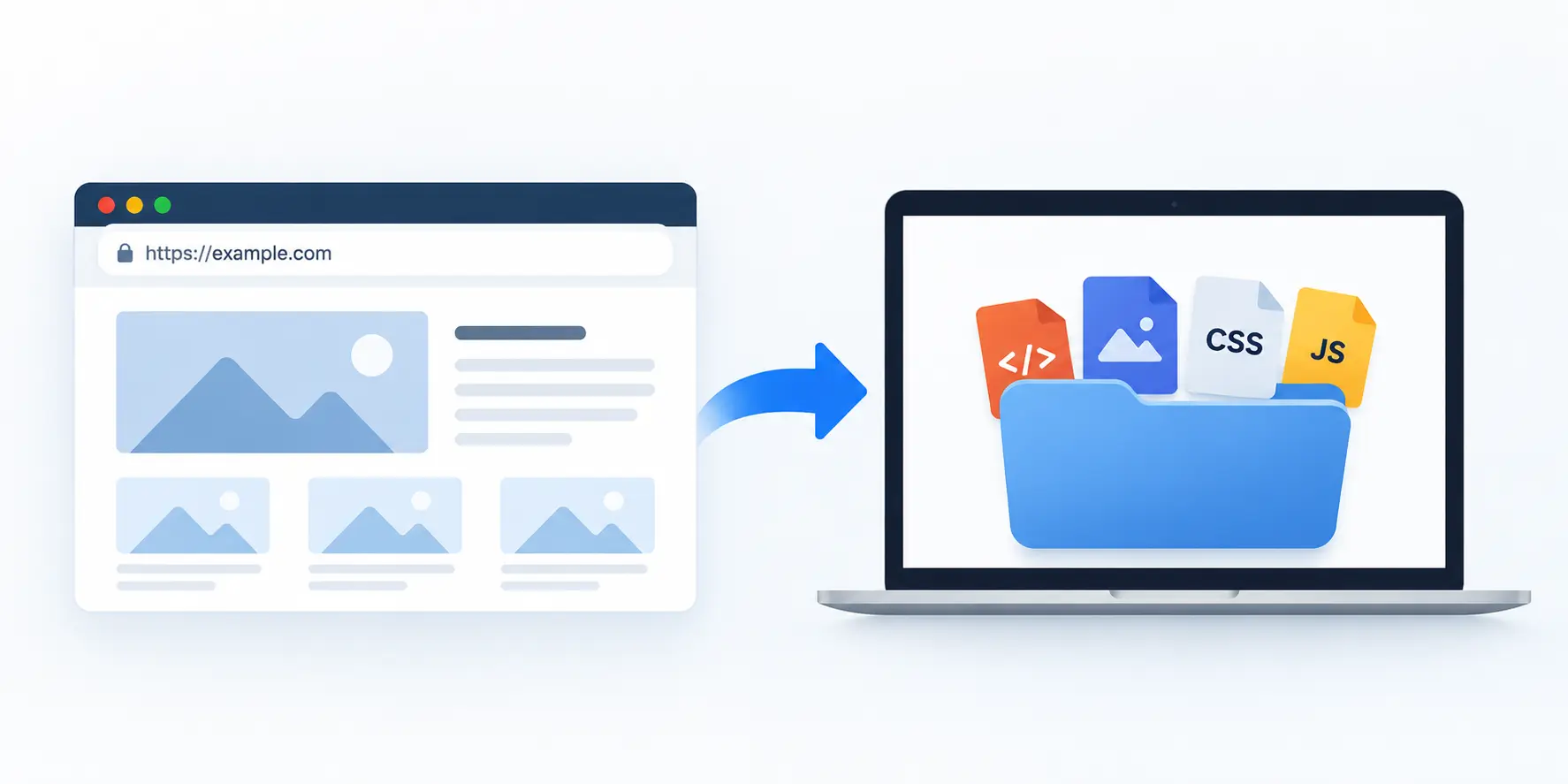
Copying a live website means pulling down its pages, images, style-sheets, and scripts while the site is still up and reachable. It’s fast, it’s straightforward once you know the steps, and it gives you something a lot more useful than a vague sense of “I should probably back this up.” Here’s how to actually do it.
Why You’d Want to Copy a Live Site
There are a handful of situations where this comes up over and over. You’re about to redesign a site and want the current version preserved exactly as it is, so if the new theme breaks something, you’ve still got the old one to reference or roll back to. You’re switching hosts and want an independent copy that doesn’t live inside the account you’re about to cancel. You inherited a client’s site with zero documentation and need a working local copy to poke around in before you touch anything. Or maybe you just found something online you don’t want to lose access to later, a reference design, an old project, a competitor’s page, and want it saved for offline viewing.
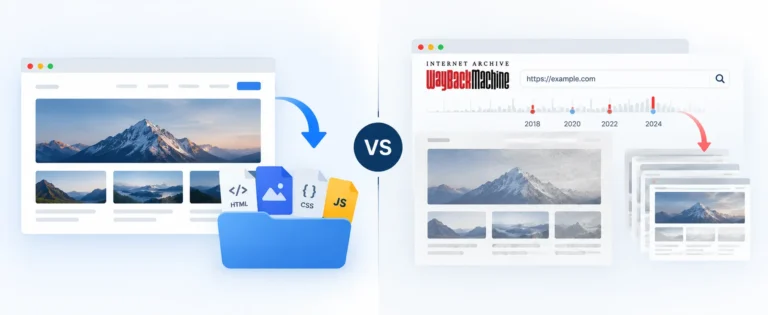
In every one of these cases, the site is healthy and loading fine right now. That’s the window you’re working with. A tool designed to restore deleted websites can’t replace a live website downloader. The two solve different problems: one copies a website that’s still online, while the other recovers available pages from archived snapshots. One needs the site online. The other needs it to have been online at some point, with the right pages already captured by somebody else’s crawler.
What a Website Downloader Actually Grabs
A Website Downloader works by crawling a live URL much the way a browser does, following links, pulling HTML, and saving the images, CSS, and JavaScript files that page references. Done right, you end up with a folder of files that renders close to identically when you open it locally or upload it somewhere else.
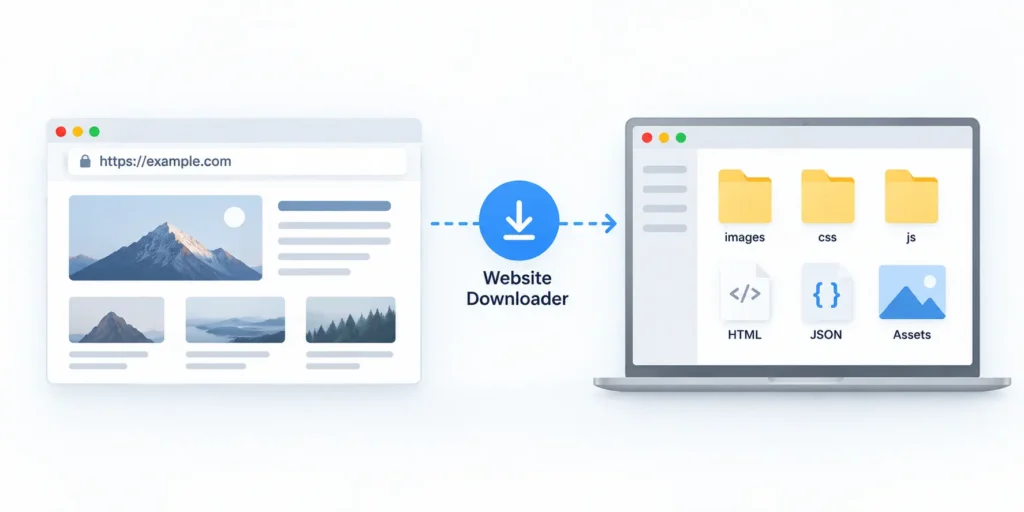
It’s not magic, though, and it helps to know where it struggles. Pages built with heavy client side rendering, where the content loads in after JavaScript runs rather than being present in the raw HTML, can come back incomplete unless the tool actually executes that JavaScript during the crawl. Content sitting behind a login wall won’t get pulled at all. And anything generated dynamically per visitor, like a shopping cart or a personalized dashboard, isn’t really “the site” in the sense you’re trying to preserve, it’s a snapshot of one interaction, not the underlying structure.
For a typical WordPress site, a marketing page, a blog, a small business brochure site, none of that is usually a problem. Most of what matters is static enough to crawl cleanly.
Step by Step: Copying a Live Website
The process is the same whether you’re backing up your own site or saving a copy of something else you have the right to download.
- Start with the homepage URL. Make sure you’re using the live, canonical address, not a staging URL or a cached redirect, since that’s what the crawler will follow outward from.
- Set a reasonable crawl depth. If the site is small, let it crawl everything. If it’s large, decide up front whether you need the whole thing or just the key pages, since crawling tens of thousands of URLs takes real time.
- Let the crawl run and check the output. Open a handful of saved pages locally and compare them to the live versions. Look specifically for missing images or styles that didn’t come through, since those are the most common gaps.
- Save the result somewhere outside your current hosting account. A copy that lives on the same server you’re worried about losing access to defeats the point. Cloud storage or a local drive both work fine.
- Re-run it periodically if the site changes often. A one time backup is fine before a redesign. An ongoing project might need this repeated monthly or after major updates.
That’s really the whole process. It’s less about technical difficulty and more about being deliberate, running it before you need it rather than after something’s already broken.
Copying a Site vs. Recovering One From the Wayback Machine
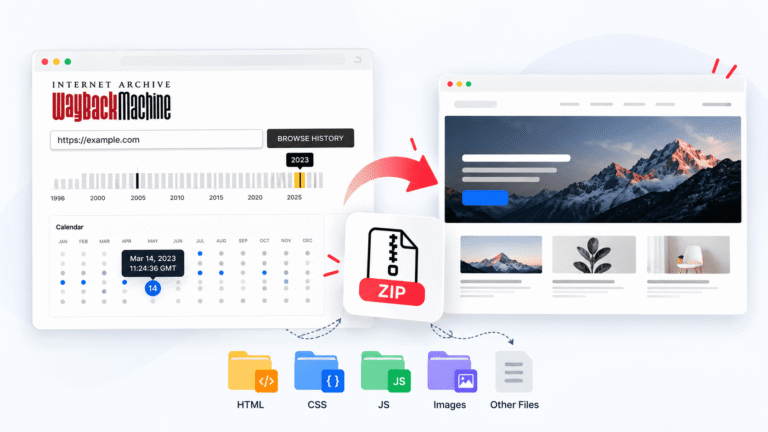
It’s worth being clear about where this overlaps with archive based recovery, because people often land on one when they meant the other. A website downloader needs the site to be online right now. If you can load it in a browser, you can crawl it. If the site is already down, deleted, or the hosting account’s been wiped, there’s nothing live left to pull, and you’re stuck recovering a website from Archive.org instead, piecing it together from whatever snapshots happen to exist.
Neither tool is better across the board. They just solve different moments in a site’s life. One is proactive insurance while things are fine. The other is what’s left when they’re not. If you’ve never worked through an archive based rebuild before, our guide on how to download a website from the Wayback Machine covers that process end to end, including what to do when certain pages or assets didn’t get captured.
Common Mistakes People Make
The biggest one is waiting too long. People think about backing up a live site right after something’s already gone sideways, which is exactly backwards. The whole value of a web downloader is that it works while things are still fine. Once the site’s offline, this specific approach is off the table entirely.
The second mistake is assuming a partial crawl is a complete backup. If the output is missing half the images or several key pages didn’t get captured, that’s not a safety net, it’s a false sense of security. Always spot check the result before you trust it. And third, people forget to actually store the copy somewhere separate. A backup sitting in the same account as the live site doesn’t protect you from a hosting failure or an account deletion, since both the original and the copy go down together.
FAQ
Can I copy a website I don’t own?
Downloading your own site, or one you have explicit permission to copy, is fine. Downloading someone else’s live site without permission is a different question, and you should check that site’s terms before doing it.
Will the copy look exactly like the live site?
Mostly, yes, for standard HTML, CSS, and images. Heavily dynamic pages or anything requiring a login usually won’t come through perfectly and need extra handling.
How often should I back up a live site this way?
Before any major change, like a redesign or a host migration, at minimum. For a site that updates constantly, a monthly or quarterly crawl is a reasonable habit.
What’s the difference between this and a WordPress backup plugin?
A backup plugin saves your database and files from inside WordPress itself. A website downloader works from the outside, crawling what a browser sees, which is handy when you don’t have admin access or just want an independent copy.
Can I use the downloaded copy to migrate to a new host?
For a static or mostly static site, yes, you can upload the files directly. For a database driven site like WordPress, the downloaded copy is more useful as a reference or fallback than a direct one to one migration.
What if my site is already offline, can I still use a website downloader?
No, a live downloader needs the site to respond to requests right now. If it’s already down, you’ll need to work from whatever the Wayback Machine managed to capture before that happened.
Bottom Line
Copying a live website is one of those tasks that takes twenty minutes and saves you a very bad week later. Do it before the redesign, before the migration, before you hand a client site back without documentation. RecoverYourSite.com covers both ends of this, a live crawl while your site is healthy and a recovery path if it’s already too late for that. Check how it works if you want to see the process before you commit to running it.