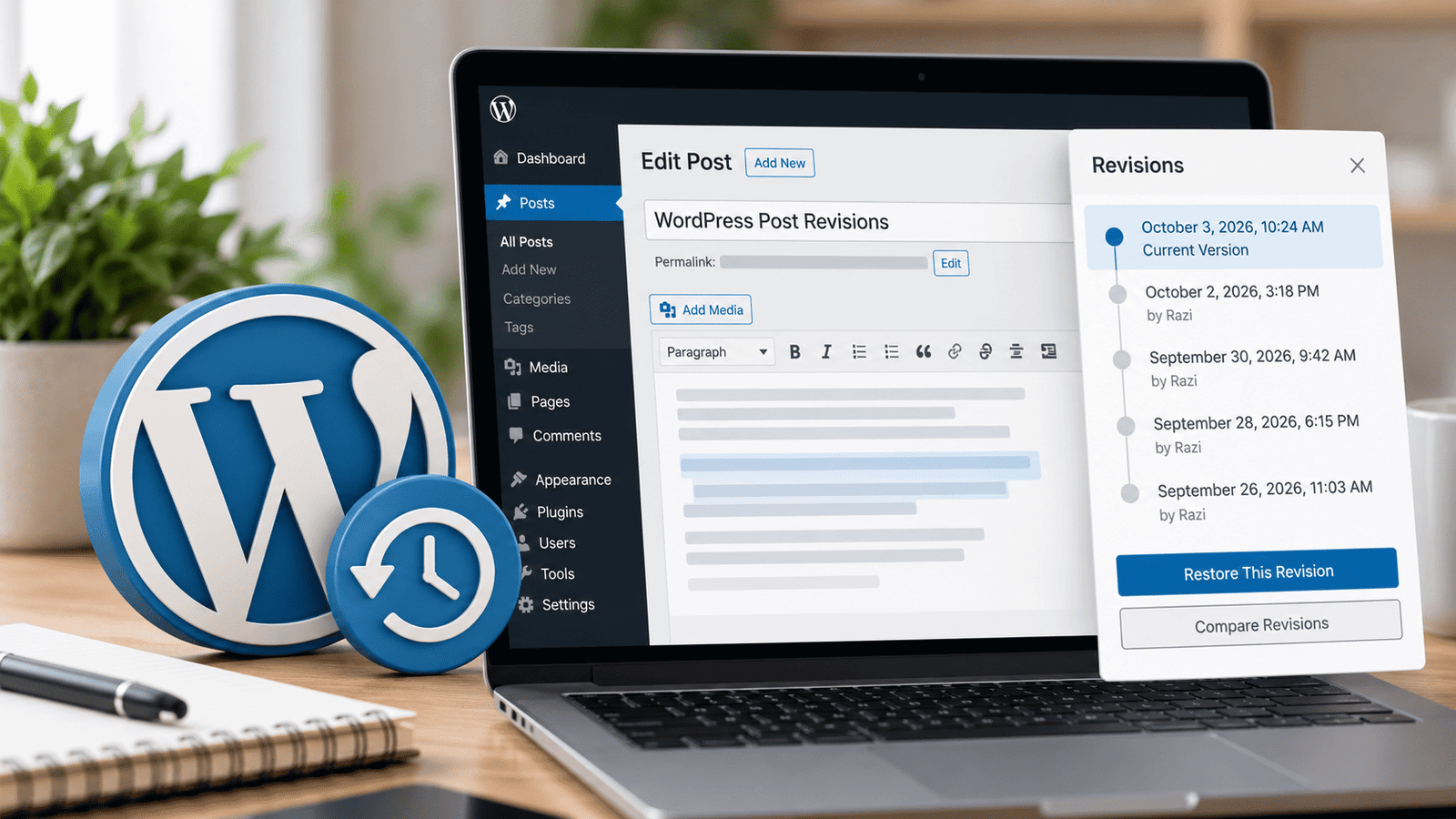
WordPress Post Revisions and Version History: Restore Previous Content Versions
Few WordPress features save as much stress, with as little fanfare, as WordPress post revisions. A client overwrites three days of copy edits. A writer pastes the wrong draft into the wrong post. An automated “SEO optimizer” plugin rewrites a paragraph and nobody notices until traffic drops. In every one of these cases, the content…
Few WordPress features save as much stress, with as little fanfare, as WordPress post revisions. A client overwrites three days of copy edits. A writer pastes the wrong draft into the wrong post. An automated “SEO optimizer” plugin rewrites a paragraph and nobody notices until traffic drops. In every one of these cases, the content wasn’t deleted from the site, it was just replaced, and WordPress has almost certainly kept a copy of what came before. Understanding how that history is stored, how to search through it, and where its limits are is one of the most practical skills a site owner can have.
How WordPress Post Revisions Actually Work
Every time a post or page is saved, manually, via autosave, or through a scheduled publish, WordPress writes a new row into the wp_posts table with a post type of revision, linked back to the original post’s ID. That row is a full snapshot of the title, content, and excerpt at that moment. Autosaves happen roughly every 60 seconds while you’re actively editing, and a separate revision is created each time you click “Update” or “Save Draft.” Over the life of a frequently edited page, this can add up to dozens or even hundreds of stored versions.
A few details matter more than people expect:
- Revisions are tied to the post ID, not to a filename or a backup archive, if the original post is permanently deleted, its revisions are deleted with it.
- By default, WordPress keeps an unlimited number of revisions unless your host or a plugin has set the
WP_POST_REVISIONSconstant inwp-config.phpto a specific number (or tofalse, which disables revisions entirely). - Revisions live in the database, so a database-level problem, corruption, a failed migration, a bad restore, can wipe out revision history even when the “live” content still looks fine.
- Custom fields and most plugin-specific metadata are not captured in the core revision system unless the plugin explicitly hooks into it.
That last point trips people up constantly. If you’re using a page builder or an SEO plugin that stores layout data or metadata in custom fields rather than the main content field, restoring a revision may bring back the text but leave the page builder’s layout unchanged. Always check the rendered page after a restore, not just the editor view.
Step-by-Step: Restoring a Previous Version
The process differs slightly depending on whether you’re using the block editor (Gutenberg) or a classic setup, but the underlying data is identical.
In the block editor
- Open the post or page you need to recover.
- Click the Document icon in the top-right sidebar, or open the three-dot menu and choose “Revision history” (the exact label varies slightly by WordPress version).
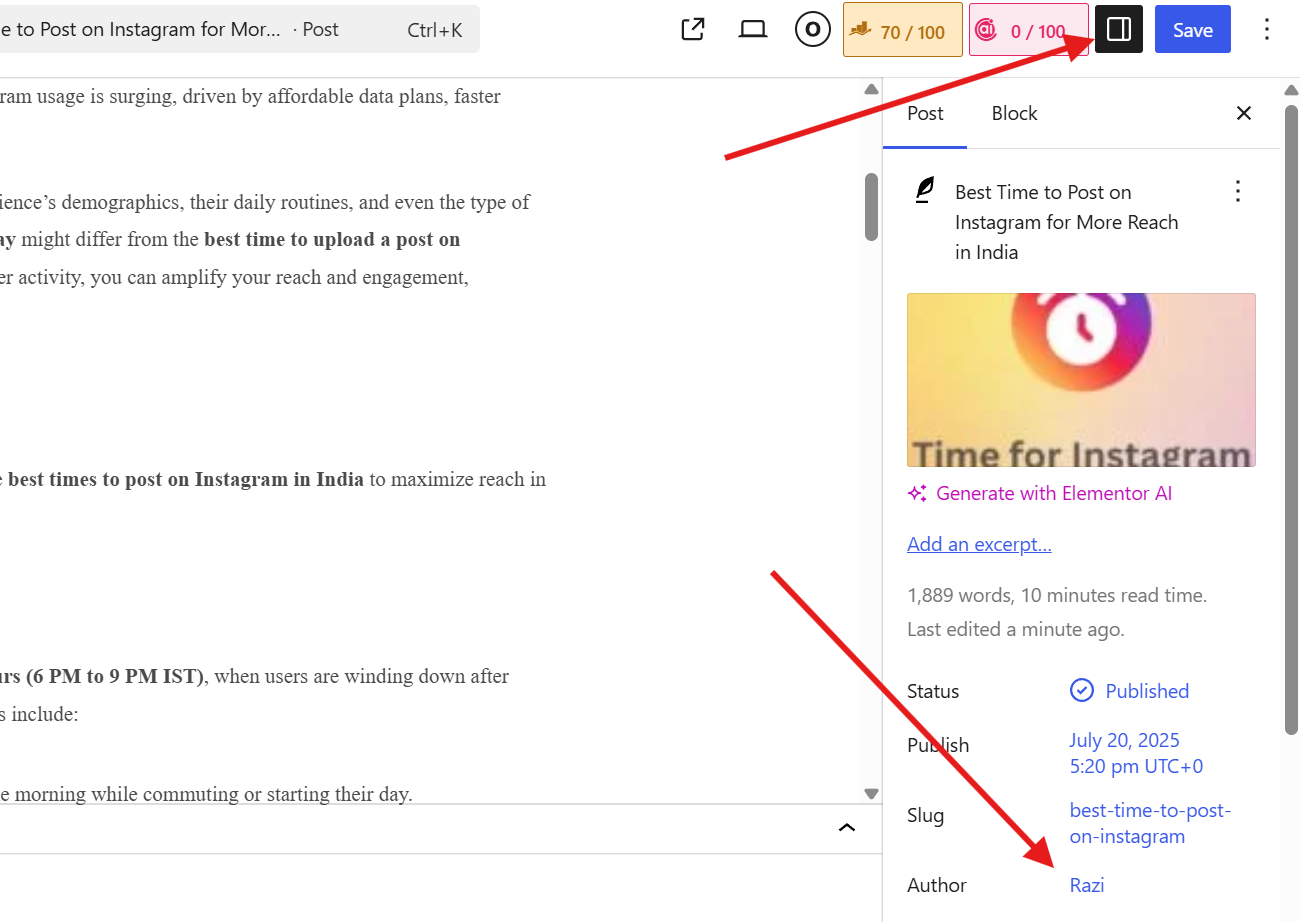
- You’ll land on a comparison screen with a slider at the top. Drag it to move between saved revisions; additions appear highlighted in green and removed text in red.
- Identify the version you want using the timestamps and author names listed above the slider.
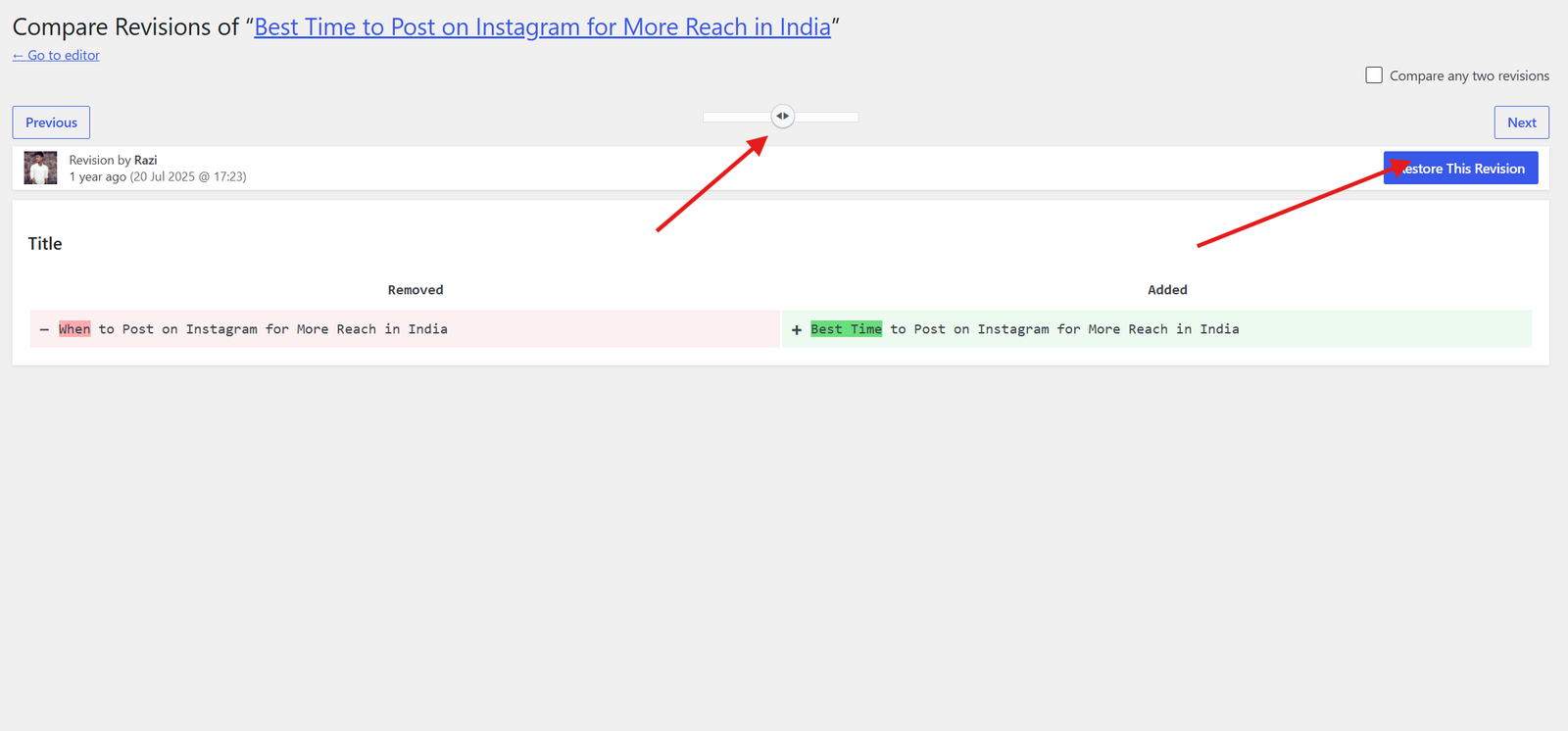
- Click “Restore This Revision.” This creates a new revision representing your current (soon-to-be-overwritten) content before applying the older version, so nothing is lost even if you change your mind.
- Review the restored content on the front end of the site, not just in the editor, especially if the page uses a builder or custom blocks.
On older or classic-editor sites
Look for the “N Revisions” link directly under the post title, next to the publish date. This opens the same comparison-and-restore interface, just styled for the classic editor.
If you can’t find a revisions link or panel at all, check two things before assuming revisions were lost: first, that revisions haven’t been disabled in wp-config.php; second, that a caching or “database optimizer” plugin hasn’t been configured to purge revisions on a schedule. Several popular optimization plugins include a “delete all post revisions” cleanup task, run automatically, that quietly removes the exact safety net you’re looking for.
When Revisions Aren’t Enough
Revisions solve the “I edited this wrong” problem. They do not solve the “this post, or the whole site, no longer exists” problem, because once a post is permanently deleted (not just trashed) or the database itself is lost, its revision history goes with it. This is where a lot of site owners discover, the hard way, that content recovery and version recovery are two different disciplines.
If a page, a whole section of your site, or the entire domain has actually disappeared, rather than just been edited down to an older version, your database no longer holds the answer, and you’re looking at external recovery sources instead: your host’s own backups, a caching service’s stored copy, or a public web archive. RecoverYourSite specializes in exactly this second category: pulling content back from outside your WordPress installation when the installation itself no longer has it.
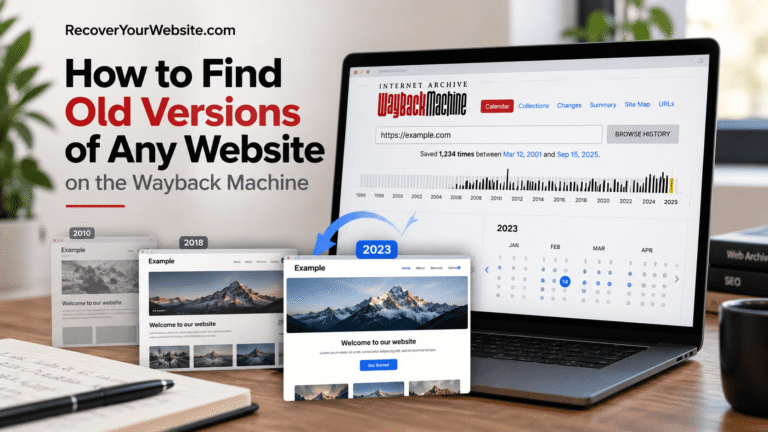
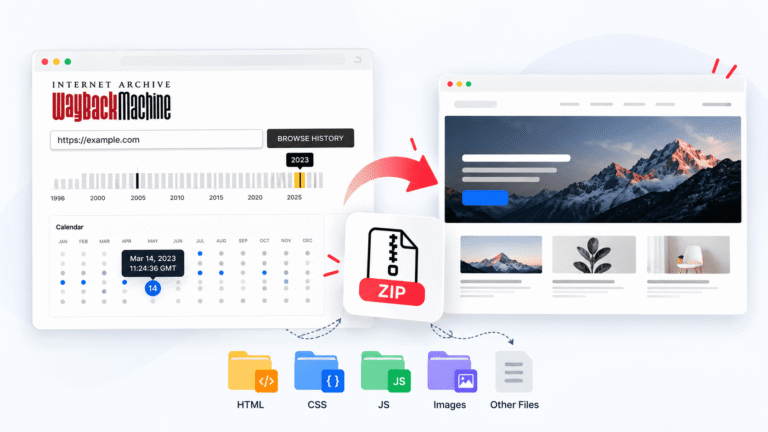
The most commonly used external source is the Internet Archive’s Wayback Machine, which crawls and stores snapshots of publicly accessible pages over time, independent of your hosting account or database. If your own backups have failed or don’t go back far enough, you can often rebuild deleted pages by pulling archived snapshots and reconstructing them into fresh WordPress posts, a process that’s considerably more involved than clicking “Restore,” since you’re working from static HTML snapshots rather than structured post data. A wayback machine downloader automates the tedious part of that process: finding every available snapshot of a domain and pulling the files down in bulk rather than saving pages one at a time by hand.
It’s worth understanding this distinction clearly, because the two recovery paths require genuinely different tools and different expectations:
| Situation | Where the data lives | Recovery method | Typical time |
|---|---|---|---|
| Edited a post badly, need an earlier draft | WordPress database (revisions) | Built-in revision history panel | Under a minute |
| Post trashed accidentally | WordPress database (trash) | WordPress Trash folder, restore before permanent purge | A few minutes |
| Post or site permanently deleted | Host backup, if one exists | Restore from hosting control panel backup | Minutes to hours |
| Site deleted and no working backup exists | Public web archive (if the pages were ever crawled) | Archive snapshot extraction and rebuild | Hours to a few days, depending on site size |
For a straightforward walkthrough of how archive-based recovery works end to end, this guide breaks down the process without assuming prior technical experience. And if the scope of the loss goes beyond what you’re comfortable rebuilding yourself, a large site, missing structure, or content spread across hundreds of archived URLs, professional website restoration services can handle the extraction and WordPress re-import for you.
Protecting Your Version History Going Forward
The best time to think about revision history is before you need it. A short checklist goes a long way:
- Confirm revisions aren’t disabled by checking
wp-config.phpfor aWP_POST_REVISIONSline set tofalseor a low number. - Audit any caching, cleanup, or “database optimizer” plugin for an automatic revision-deletion task, and disable it or raise the retention threshold.
- Pair revisions with a real backup plugin, revisions protect content edits; backups protect against database loss, hacks, and full-site disasters.
- Periodically check that older posts and pages still appear in search engine caches or in archive.org snapshots, using this website downloader to pull a full copy down for safekeeping if you want a local fallback.
- Before a major redesign, content migration, or bulk SEO rewrite, export a full XML backup, revisions can be pruned during large migrations, and a dedicated export is a more reliable safety net for big changes.
Frequently Asked Questions
How many revisions does WordPress keep by default?
Unlimited, unless your host or a plugin has set a limit in wp-config.php. Some managed hosts cap revisions (commonly at 5–25 per post) to keep database size down, which is worth checking if you expect deeper history than you’re actually seeing.
Can I restore a revision after the post has been trashed?
Yes, as long as the post is still sitting in the Trash and hasn’t been permanently deleted (WordPress auto-empties Trash after 30 days by default). Restore the post from Trash first, then open its revision history normally.
Do revisions slow down my site?
Not noticeably for most sites, since revisions aren’t loaded on the public-facing pages. On very large, frequently edited sites they can bloat the database over time, which is a reason to periodically prune old revisions rather than a reason to disable them outright.
What if the post itself is gone, not just an older version of it?
Then revisions can’t help, because there’s no post record left for them to attach to. At that point you’re looking at host backups or, if those have failed, rebuilding from a public archive, a different process entirely, covered in the sections above.
Version history and full content recovery solve two different problems, but together they cover almost every way content can go missing, from a single bad edit to a deleted domain. Knowing which tool fits which situation is most of the battle; the rest is just following the right steps calmly instead of panicking into a worse mistake.