How to Find Old Versions of Any Website on the Wayback Machine
The Wayback Machine is the public search tool for the Internet Archive, a nonprofit that has been crawling and storing snapshots of web pages since the mid-1990s. It was founded in 1996 and opened to public search a few years after that. It does not capture every page on the internet, and it cannot see…
The Wayback Machine is the public search tool for the Internet Archive, a nonprofit that has been crawling and storing snapshots of web pages since the mid-1990s. It was founded in 1996 and opened to public search a few years after that. It does not capture every page on the internet, and it cannot see anything sitting behind a login, but for a public site that has been online for a while, there is usually more history in there than people expect.
Two things determine how much of a site it holds. The first is how often crawlers found and followed links to it, which loosely tracks how well known and well linked a site was over the years. The second is whether the site ever blocked crawlers, since a robots.txt file set to exclude archiving will leave gaps in the record for however long it was in place.
Searching for a specific page versus an entire domain
This is where most searches go wrong before they even start. Searching the exact address of one page shows you the capture history for that single URL only. Searching just the domain name with no path after it gives you a broader picture of everything the Archive holds for that site.
| What you type | What you get back |
|---|---|
| example.com | Domain level history, the usual starting point |
| example.com/about | Capture history for that one page only |
| www.example.com | A separate history from the non-www version |
| example.com/page?utm_source=… | Often nothing, tracking parameters rarely match a capture |
Keep the search as simple as possible rather than pasting a long URL copied from an email or an ad. Strip anything after a question mark before searching. It makes a bigger difference than most people expect.
Reading the snapshot calendar
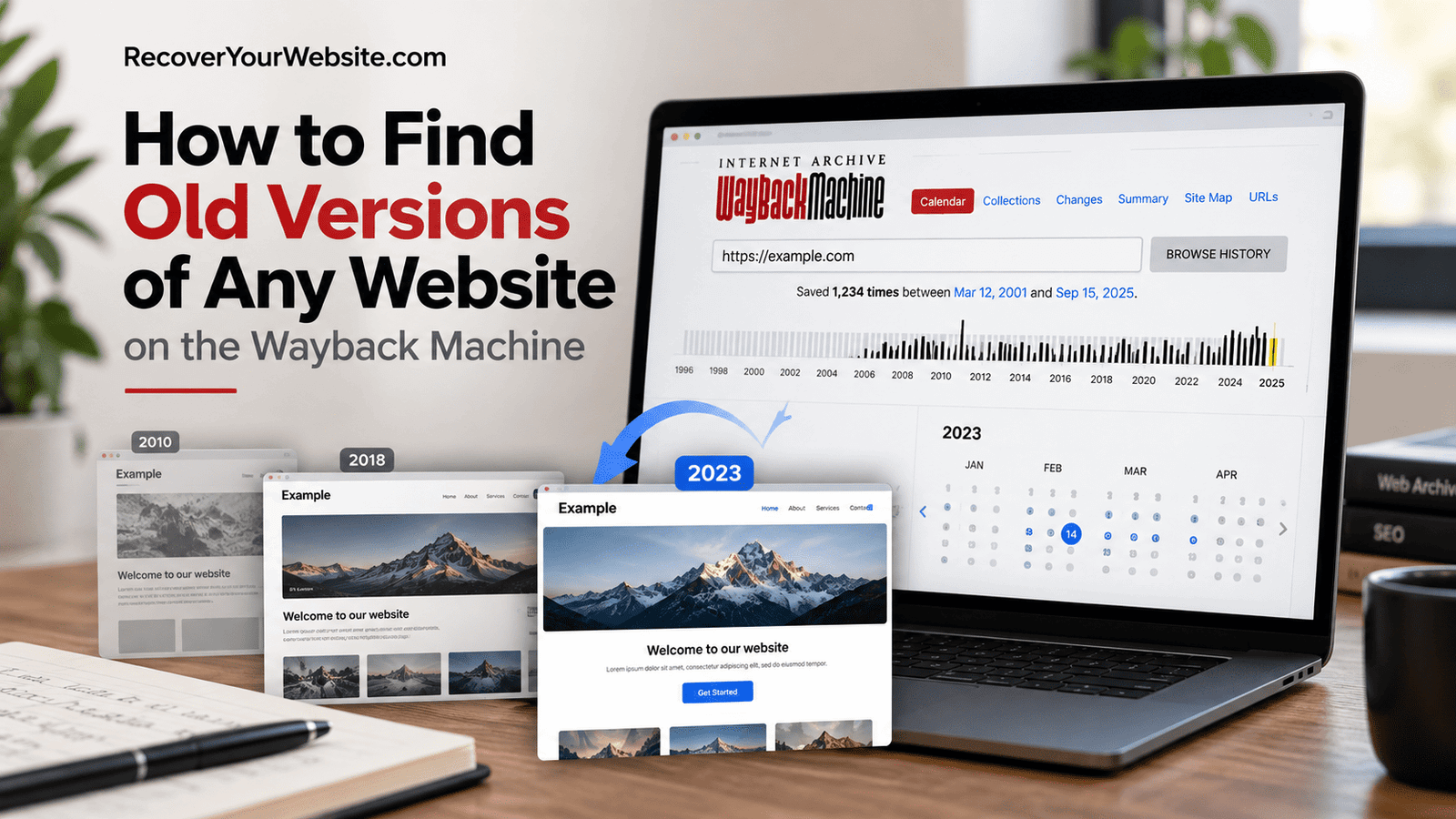
Once you search a URL, the Wayback Machine opens a calendar view. A bar across the top lets you jump between years and gives a rough sense of how often the page was crawled during each one. Below that, a monthly calendar shows individual days, with a marker on any date that has at least one saved snapshot. Busier dates have a heavier marker. Click a date, then click the specific timestamp that appears, and the page loads exactly as it looked at that moment, old banner, old layout, and all.
A few quirks are worth knowing. Snapshot dates reflect when the crawler visited, not when the page actually changed. A page that sat untouched for two years will look identical across dozens of captures. Archived pages also often load slowly and may show broken images or missing styling, because each asset has to be fetched from its own separate capture, and those were not always taken on the same day.
A few searches worth doing
Your own old domain, to see designs and content from years ago. A competitor’s pricing page or homepage from before a rebrand. A news article or blog post that was quietly edited after it first went live. A product page, to check when a particular claim, price, or feature first appeared. A supplier’s site from the period a contract was signed. And a domain you are thinking of buying, to see what it was actually used for before it went on sale.
That last one matters more than people realise. Expired domains sometimes carry a history the current listing does not mention. The archive is the fastest way to find out.
Comparing two versions of the same page
Finding one snapshot is the easy part. The more useful thing is putting two versions side by side to see what actually changed, which is usually where the real research question lives.
The simplest approach needs no special tools. Open two snapshots from different dates in separate browser tabs and switch between them. Differences in headline wording, pricing, and calls to action tend to jump out when the layout stays the same and only the text moves. For text heavy pages, copying both into a plain document and comparing them line by line catches the smaller edits that visual scanning misses.
Write down the full snapshot URL for each version you are comparing. It contains the exact capture timestamp, which is what makes the comparison verifiable by someone else later rather than just something you saw once and cannot prove.
Saving a page to the archive yourself
The Wayback Machine also runs in the other direction. Its Save Page Now tool takes a URL and captures the page on the spot. This is useful when a page is live today and you are not confident it will stay that way.
Saving before you request a change gives you a record of what it said first. Archiving your own site before a redesign or migration means the old version exists somewhere independent of you. Preserving a source you are citing means the reference still works if the original moves. And capturing a supplier or partner page at the moment terms were agreed is exactly the kind of thing that proves its value later.
A capture you make yourself is only as old as the day you made it. It proves what a page says now, not what it said last year. That distinction matters most when a page’s history is genuinely disputed.
When the calendar comes up empty
Not every domain has good coverage. Brand new sites, low traffic pages the crawler never prioritised, and sites that blocked crawlers at some point can all show a thin or empty calendar. If you searched your own domain and got nothing, that is common enough to have its own troubleshooting path covering URL variations, robots.txt exclusions, and how to query the Archive’s full capture index directly.
Browsing history versus recovering a whole site
Everything above is about looking at one page at a time in a browser, which is fine for research, comparisons, or settling a question about what a page used to say. Recovering an entire website is a different job.
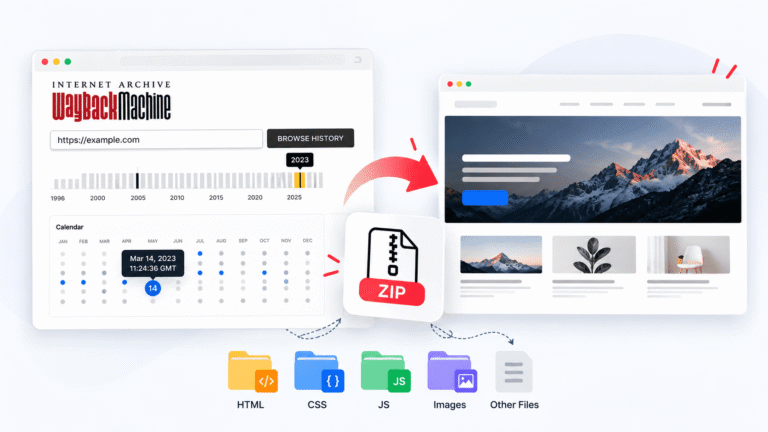
Saving a single archived page from the browser gets you that one page, usually with broken links and missing assets, because the images and stylesheets each live at their own separate archived addresses. Recovering a site properly means resolving all of that across every page at once. RecoverYourSite’s website downloader automates that work and returns a ZIP file you can actually upload to new hosting. This guide covers exactly how the process works, screenshots included, and their pricing page lists page limits and link expiry for each plan.
If the old site needs to come back as something you can actually edit rather than a folder of static files, this recovery service covers rebuilding a snapshot into WordPress, recovering written content on its own, and reviving an expired domain. And if you are setting up the recovered site somewhere new, this list of recommended tools covers hosting, domain, SSL, and backup options grouped by stage of the process.
Frequently asked questions
Do I need an account to use the Wayback Machine?
No. Searching and browsing archived pages is free and does not require signing up. An Internet Archive account is only needed for some contributor features, not for looking things up.
How far back does the coverage go?
As far back as 1996 for some of the earliest captures, since that is when the Internet Archive began. Coverage for any specific site varies a lot. A major news site might have thousands of snapshots. A small personal blog might have a handful, or none at all.
Can I just save a page from the browser view?
You can print or save the visible page manually, but that only captures what is on screen. It will not include every linked asset or connected page needed to host the site again, which is the gap a purpose built recovery tool closes.
Why do archived pages look broken or unstyled?
Each asset is fetched from its own capture. If the stylesheet was saved on a different date than the page, or was never captured at all, the layout falls apart even though the text is intact. This is normal and does not mean the content is lost.
Can I see a page that was deleted years ago?
Yes, provided it was public and was crawled before it was removed. Deleting a page from a live site does not remove earlier captures of it from the archive.
Is it legal to look at and use archived pages?
Viewing and citing archived pages is routine and unremarkable. Reusing someone else’s content is a separate question governed by ordinary copyright, and the legal side of recovering from the Wayback Machine covers where that line sits.