Restore WordPress Admin Access When Locked Out
Getting locked out of your own WordPress admin dashboard is one of the most unsettling moments a site owner can face. One minute you’re logging in to update a page, and the next you’re staring at an “incorrect password” error, a blank white screen, or a redirect loop that never lets you reach /wp-admin. The…
Getting locked out of your own WordPress admin dashboard is one of the most unsettling moments a site owner can face. One minute you’re logging in to update a page, and the next you’re staring at an “incorrect password” error, a blank white screen, or a redirect loop that never lets you reach /wp-admin. The good news: in nearly every case, admin access can be restored without losing content, and most fixes take less than thirty minutes once you know which door to open and if the lockout has escalated into actual site loss, RecoverYourSite is built for exactly that situation.
If you’re locked out of WordPress admin, the fastest fix is almost always a direct database password reset through phpMyAdmin, since it works even when email reset links and plugin lockout tools are unreachable. Log in to your hosting control panel, open phpMyAdmin, find your site’s wp_users table, edit your user row, and set a new password using the MD5 hashing option your database tool provides. If you don’t have database access, try the “Lost your password?” link on the login screen first, then fall back to an FTP-based method such as temporarily disabling plugins or editing wp-config.php. Most lockouts are caused by a forgotten password, a stale browser cookie, a security plugin blocking your IP, or a conflicting plugin, not actual data loss, so stay calm and work through the causes below before assuming the worst.
Common Reasons You’re Locked Out of WordPress Admin Access
Before jumping into a fix, it helps to know what actually caused the lockout, since the right recovery path depends on the cause. Here are the scenarios that account for the vast majority of admin access problems.
Forgotten or Changed Password
The simplest and most common cause. A saved password in your browser may be outdated, autofill may be feeding in the wrong credentials, or someone else with admin access changed the password without telling you. This is also the easiest problem to solve, since WordPress has a built-in password reset flow that works as long as your admin email is still active.
Security Plugin or Firewall Lockout
Login-limiting plugins such as login attempt limiters or firewall tools will temporarily or permanently block an IP address after a handful of failed login attempts. If you recently mistyped your password a few times, or your internet provider assigned you a new IP that a security plugin now flags as unrecognized, this is likely your issue. These plugins store their block lists in the database, which is why a database-level fix often resolves it instantly.
Plugin or Theme Conflict Breaking the Login Page
Sometimes the credentials are correct, but the login page itself fails to load, redirects endlessly, or throws a fatal error. This usually points to a recently updated plugin or theme that is incompatible with your current WordPress version or PHP version. The fix involves disabling plugins through file access rather than through the dashboard, since the dashboard is exactly what you can’t reach.
Lost Access to the Admin Email Account
If the email address tied to your admin account was tied to a former employee, an old domain, or a service you no longer control, the standard “Lost your password?” flow becomes useless. In this case, you’ll need direct database or file access to reset things, since there’s no inbox to receive the reset link.
Malware or Unauthorized Access
In rarer and more serious cases, an attacker has changed your admin credentials, created a rogue admin user, or installed malicious code that redirects the login page. If you notice unfamiliar admin users, unexpected redirects to spam sites, or warnings from your browser about the site being unsafe, treat this as a security incident rather than a routine password problem, and scan the site thoroughly once you regain access. Our guide on how to recover a hacked WordPress website walks through the full cleanup process.
Step-by-Step Methods to Restore WordPress Admin Access
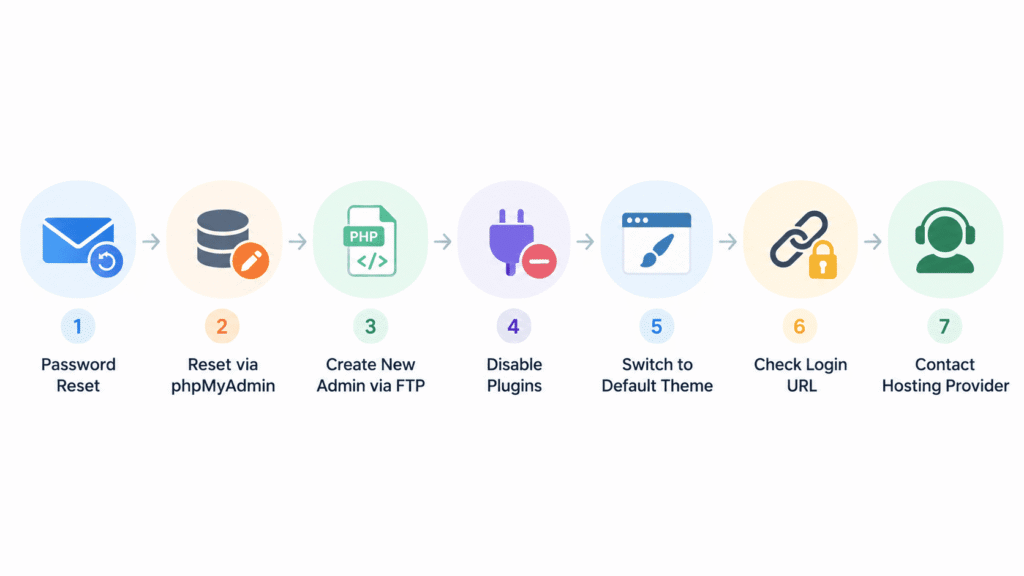
Work through these methods roughly in order. Start with the simplest option that applies to your situation, and move down the list only if it doesn’t resolve things.
1. Use the Built-In Password Reset
On the login page, click “Lost your password?” and enter your username or admin email. WordPress will send a reset link to the email on file. Check your spam folder, and confirm the sending domain hasn’t been blocked by your mail provider. If the email never arrives after a few minutes, your site’s outgoing mail may be misconfigured, which is a separate but related problem worth fixing afterward with a dedicated SMTP plugin.
2. Reset the Password Through phpMyAdmin
Log in to your hosting account’s control panel and open phpMyAdmin or an equivalent database tool. Select your WordPress database, open the wp_users table, and locate the row for your admin account. Click edit on that row, clear the user_pass field, type a new password, and set the function dropdown next to that field to MD5 before saving. WordPress will recognize the MD5-hashed value and automatically re-hash it securely the next time you log in. This method works even if your email is unreachable, your IP is blocked, or the login page itself is broken, which is why it’s the most reliable fallback.
3. Create a New Admin User via FTP and a PHP Snippet
If you can’t reach phpMyAdmin either, connect to your site via FTP or your host’s file manager and temporarily add a small PHP snippet to your active theme’s functions.php file that creates a brand-new administrator account. Once you’ve logged in successfully with the new account, remove the snippet immediately, leaving it in place is a serious security hole, since anyone who finds it could create their own admin account too.
4. Disable Plugins to Rule Out a Conflict
Via FTP or file manager, navigate to wp-content/plugins and rename the folder of any security or login-related plugin to something like plugin-name-disabled. WordPress will deactivate it automatically without needing dashboard access. Try logging in again after each plugin you disable. If access returns, you’ve found the culprit, and you can update or replace that plugin before reactivating the rest.
5. Switch to a Default Theme
If disabling plugins doesn’t help and you suspect the theme, rename your active theme’s folder inside wp-content/themes via FTP. WordPress will automatically fall back to a default theme. This won’t fix a credentials problem, but it will resolve lockouts caused by a theme-level fatal error on the login or dashboard screens. If you’re also seeing a blank white screen, that may be a separate issue, see our white screen of death fix guide.
6. Check for a Whitelabeled or Changed Login URL
Some security plugins change the login page address away from the default /wp-admin or /wp-login.php for protection. If you’re seeing a generic 404 error rather than a login form, you may simply be visiting the wrong URL rather than experiencing an actual lockout. Check your plugin settings via database access or ask whoever configured the site originally.
7. Contact Your Hosting Provider
If none of the above is accessible to you, for example, you don’t have hosting panel credentials either, your hosting provider’s support team can usually reset database access or restore a recent backup on your behalf. If your hosting account itself has been suspended or terminated, read our guide on how to recover a website after hosting expires. Managed WordPress hosts in particular often keep automatic backups that make this a fast path back in.
Database vs. File-Based Recovery: Which Method Fits Your Situation
Not every lockout calls for the same tool. Use this comparison to decide where to start.
| Situation | Best Recovery Method | Access Needed |
|---|---|---|
| Forgot password, email still works | Built-in “Lost your password?” link | Admin email inbox |
| Email unreachable or outdated | phpMyAdmin password reset | Hosting control panel |
| Blocked by a security plugin | phpMyAdmin, delete lockout records or deactivate plugin | Hosting control panel |
| Login page errors or redirect loop | Disable plugins/theme via FTP | FTP or file manager |
| No hosting credentials at all | Contact hosting support | Account verification with host |
| Suspected hack or rogue admin user | Database reset plus full malware scan | Hosting control panel and a security plugin |
Preventing the Next Lockout
Once you’re back in, spend fifteen minutes closing the gaps that caused the problem in the first place. A lockout is a good forcing function for cleanup that usually gets postponed indefinitely.
- Use a password manager so credentials are never only stored in your memory or a sticky note.
- Keep your admin email account current, and avoid tying it to an employee who might leave or a domain you might drop.
- Create a secondary administrator account with its own separate email and password, stored somewhere safe, as a backup entry point.
- Save your hosting control panel and database login credentials somewhere secure and accessible even if the WordPress dashboard itself goes down.
- Keep a recent full backup, files and database, stored off-server, for a curated list of backup and security tools we trust, check out this list of recommended tools. so a lockout never escalates into genuine data loss.
- Update plugins and themes on a regular schedule in a staging environment first, rather than directly on your live site.
- Review your security plugin’s lockout and whitelist settings so a few mistyped passwords don’t lock out your own trusted devices.
- Document your site’s hosting provider, database name, and FTP details in one place your whole team can reach in an emergency.
Frequently Asked Questions
Will resetting my password through phpMyAdmin delete any content?
No. Editing the user_pass field in the wp_users table only changes your login credentials. Your posts, pages, media, and settings live in separate tables and are completely unaffected.
What if I don’t have access to phpMyAdmin or FTP either?
Contact your hosting provider’s support team directly. They can verify your account ownership and either reset your database credentials or grant you the panel access you need. This is also the right move if the site was set up by a developer or agency who never shared login details with you.
I can log in, but I don’t see the admin menu. Is that the same problem?
That’s a different issue, usually a role or capability change rather than a lockout. Check the wp_usermeta table for your user’s wp_capabilities value, which should include administrator. If it’s been changed to subscriber or another lower role, that explains the missing menu, and resetting it in the database restores full admin access.
How do I know if I was hacked rather than just locked out normally?
Warning signs include admin usernames you don’t recognize, unexpected redirects on your site’s front end, new files or plugins you never installed, and warnings from Google Search Console or your browser about malware. If you spot any of these once you’re back in, run a full malware scan and change every password associated with the site, If the damage looks extensive, website restoration services can handle the full cleanup for you, including hosting and database credentials, not just your WordPress login.
Can I prevent lockouts from security plugins entirely?
You can reduce them significantly by whitelisting your own IP address or IP range in your security plugin’s settings, enabling a longer lockout threshold rather than a hair-trigger one, and using two-factor authentication instead of relying purely on login-attempt limits for protection.
Final Thoughts
An admin lockout feels urgent in the moment, but it’s rarely catastrophic. Work through the causes systematically, start with the least invasive fix that matches your situation, and use phpMyAdmin as your reliable fallback when the usual login tools are out of reach. Once you’re back in, take the short list of preventive steps seriously, the goal isn’t just to recover this time, but to make sure the next lockout, if it ever happens, takes minutes instead of hours to resolve.