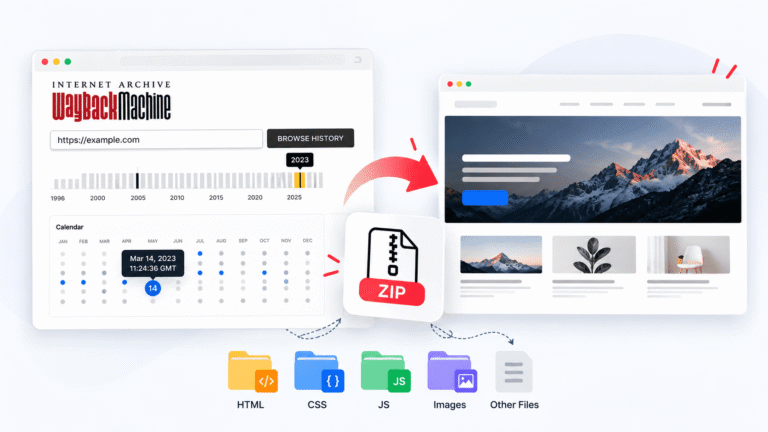
How to Download a Website from the Wayback Machine (Step-by-Step)
A complete walkthrough for pulling any archived site off Archive.org and turning it back into a working website, from finding the right snapshot to getting it live again. If your website is gone, hacked, deleted by a host, or just lost after a domain expired, there’s a good chance a copy of it still exists….
A complete walkthrough for pulling any archived site off Archive.org and turning it back into a working website, from finding the right snapshot to getting it live again.
If your website is gone, hacked, deleted by a host, or just lost after a domain expired, there’s a good chance a copy of it still exists. Website recovery often starts by finding an older copy of the site in an archive., there’s a good chance a copy of it still exists. The Internet Archive’s Wayback Machine has been quietly crawling and storing snapshots of the public web since 1996, and your old site is very likely sitting in there right now.
This guide walks through the exact process of finding that snapshot and turning it back into a real, working website. We’ll show the manual approach first, since it’s worth understanding what’s actually happening, then show how RecoverYourSite automates the entire thing.
Who this is for: anyone whose website disappeared, whether from a hosting cancellation, a hack, an accidental deletion, or an expired domain, and who wants the content and files back without hiring a developer.
Download a website from the Wayback Machine
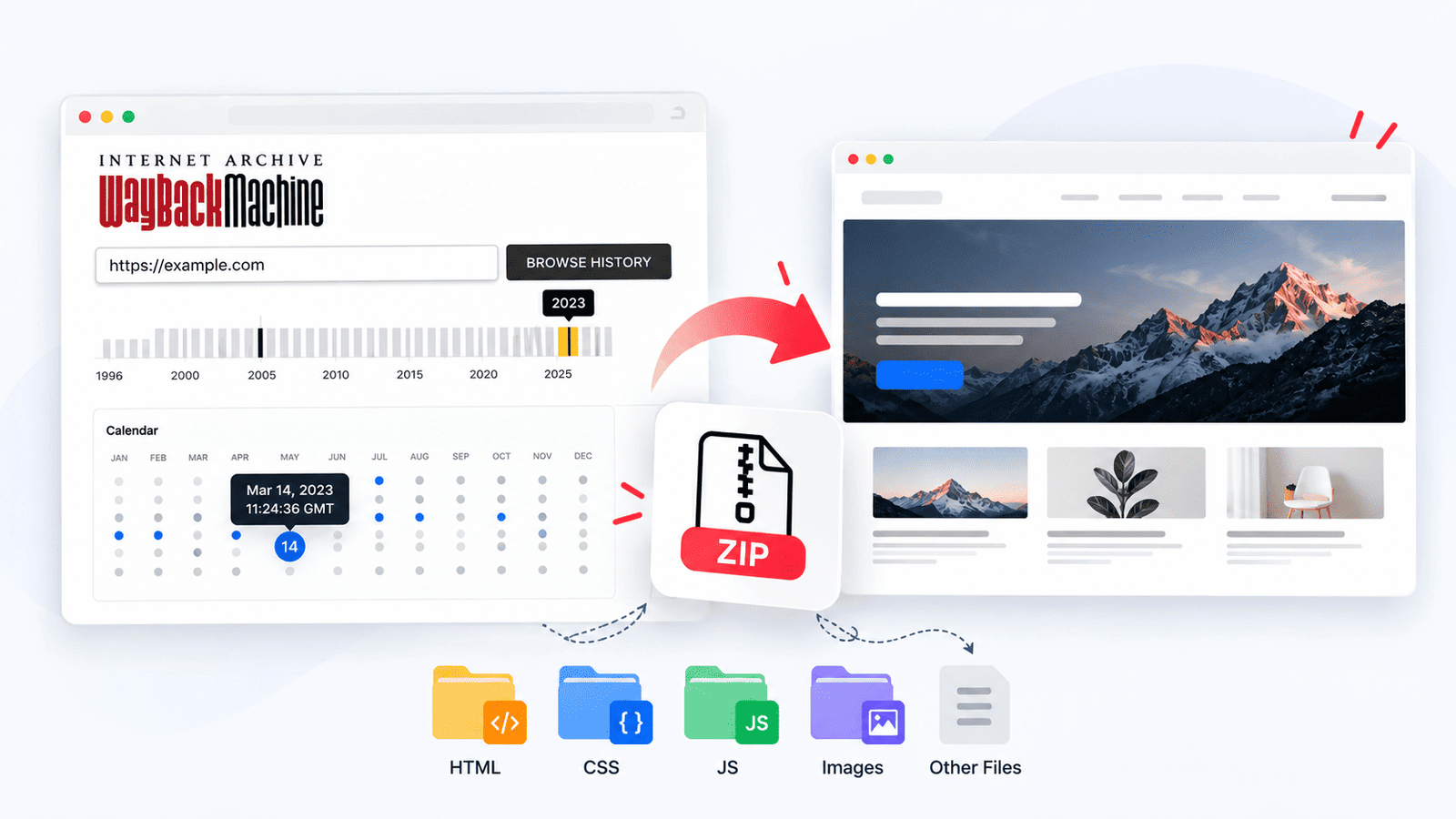
The Wayback Machine doesn’t store your website as a live copy you can just switch on. It stores individual snapshots, timestamped crawls of your pages as they existed on a specific date. Each snapshot captures the HTML, and separately, the CSS, JavaScript, images, and fonts that page loaded at the time.
This matters because a website “restore” really means reconstructing all of those separate pieces back into one working site, matching each page to the right version of its assets. That reconstruction is the part that takes real work, and it’s where most manual attempts run into broken layouts and missing images.
Step 1: Find your site’s archived snapshot
- Go to web.archive.org and type your domain into the search bar at the top. Archive.org will show a calendar view with your site’s crawl history.
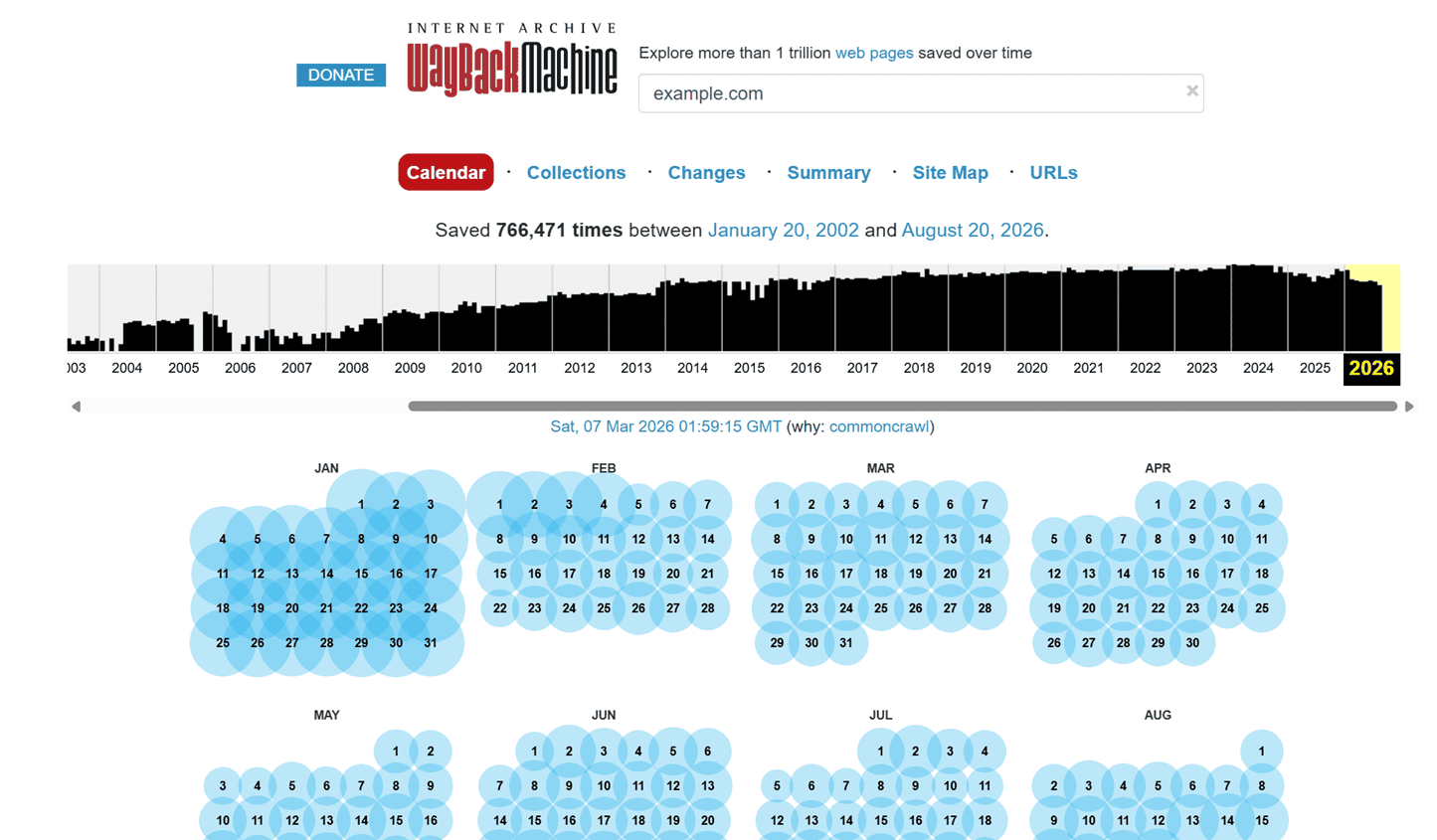
- On the calendar, blue circles mark the dates a snapshot exists. Bigger circles usually mean a more complete crawl. Click a date to open that snapshot.
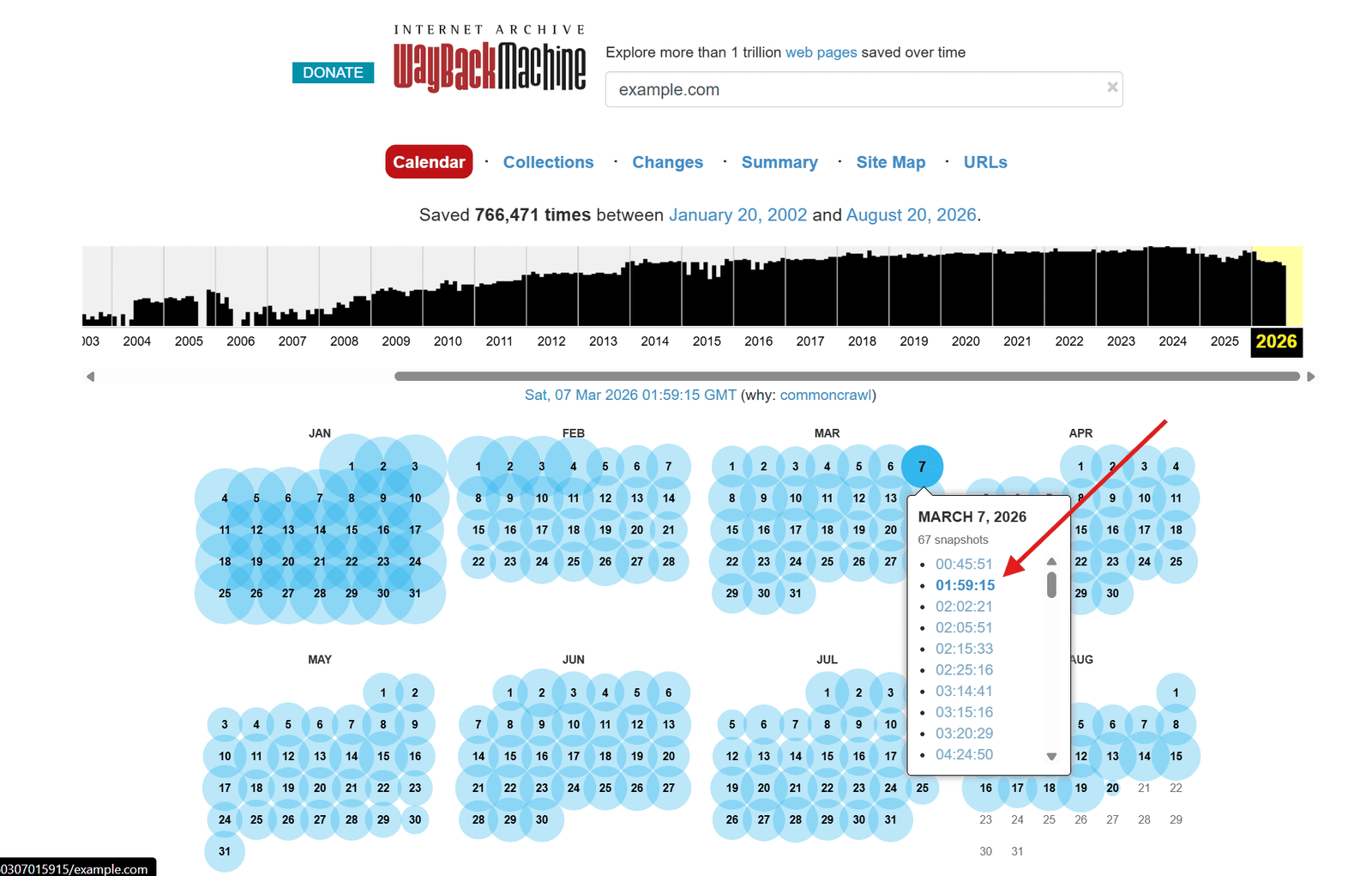
Step 2: Copy the correct snapshot URL
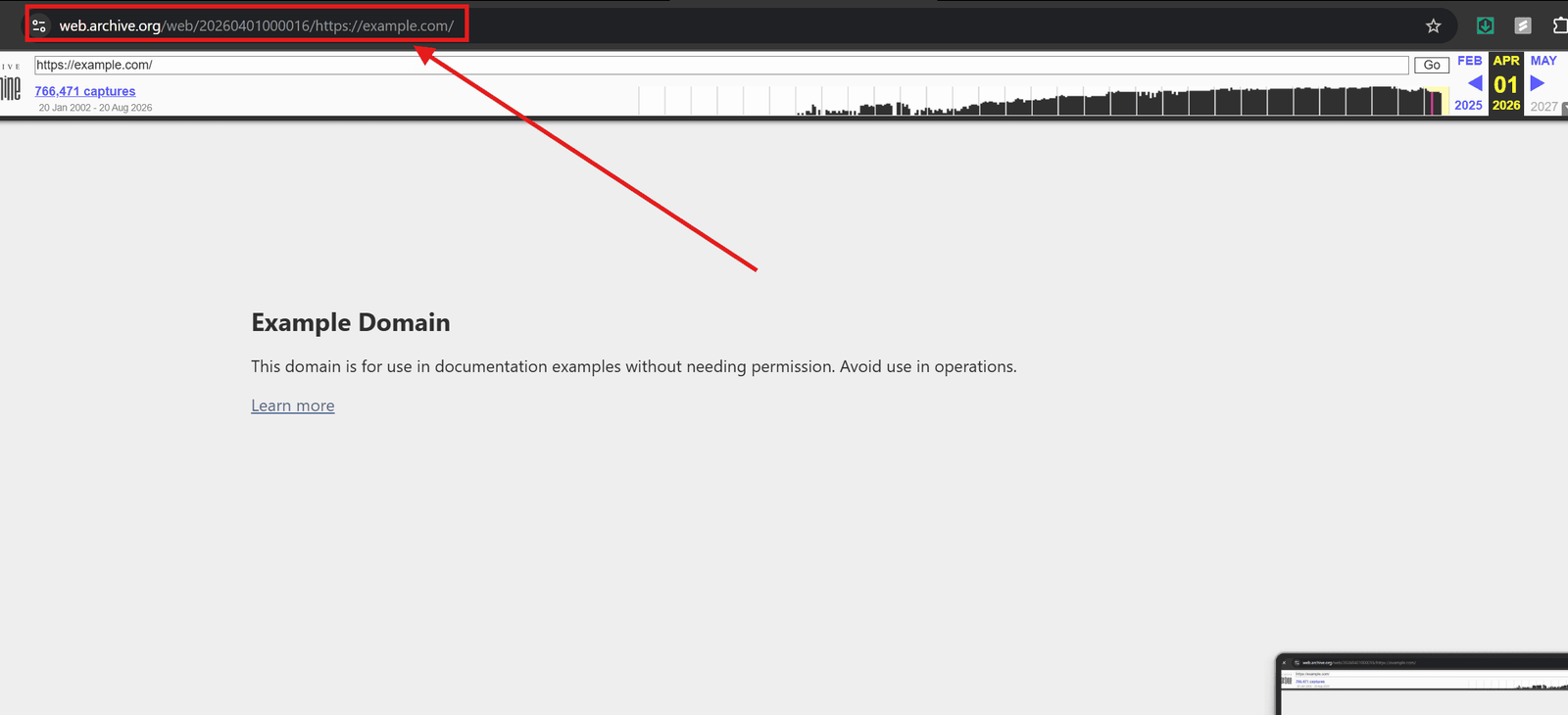
Once your snapshot loads, copy the full URL from your browser’s address bar. It will look something like this:
https://web.archive.org/web/20230512140233/https://yourdomain.com/
The long number in the middle is the timestamp. This is what tells our tool exactly which crawl to pull from.
Step 3: Restore the full site automatically
Paste that snapshot URL into the restore form on our Wayback Machine Downloader page, along with your email address.
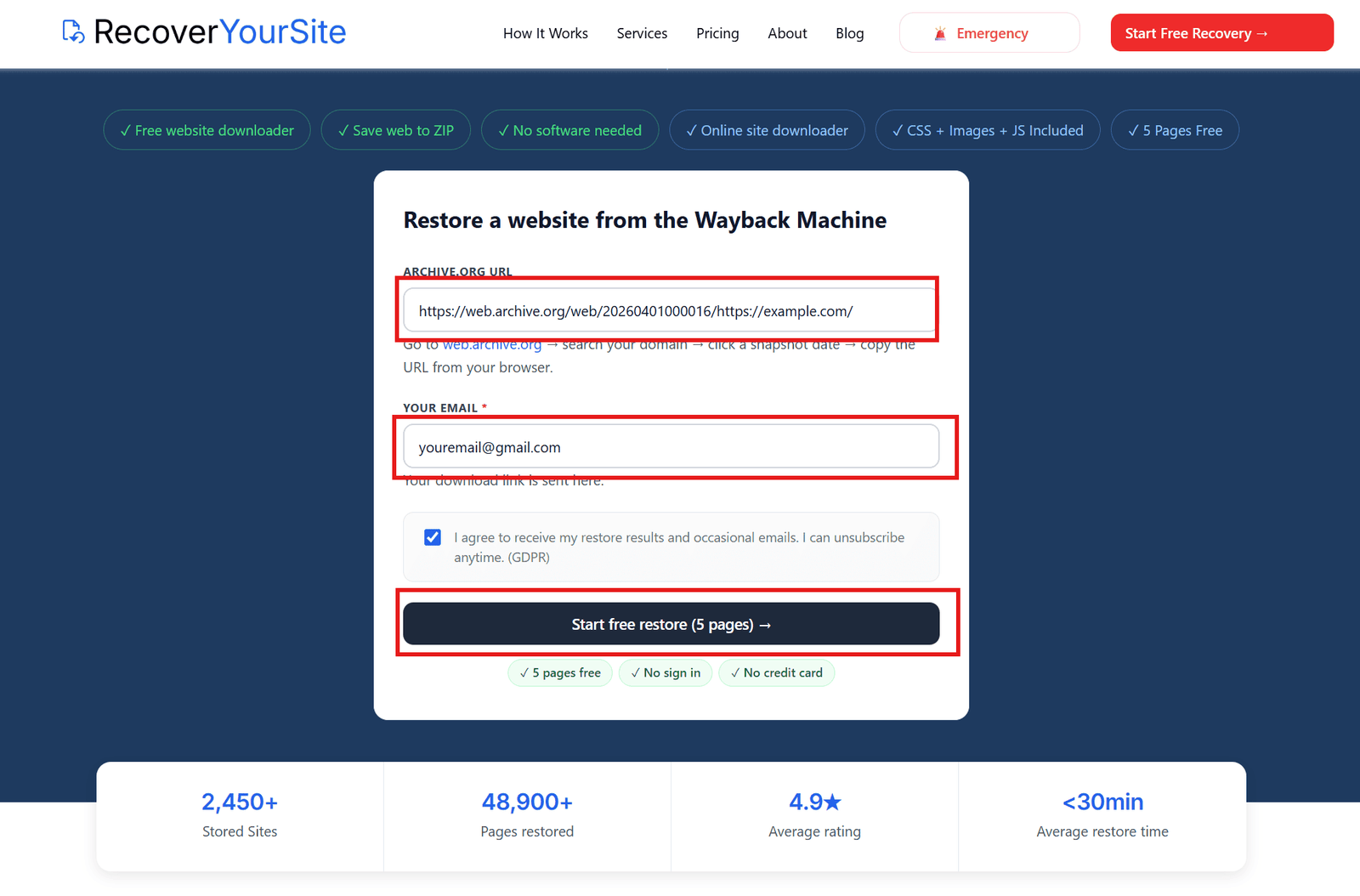
rom here, everything is automatic. The tool crawls every linked page starting from that snapshot, downloading each page’s HTML plus its CSS, JavaScript, images, and fonts, and rewrites every internal link. You can also see how the website recovery process works step by step., downloading each page’s HTML plus its CSS, JavaScript, images, and fonts, and rewrites every internal link so the site works when it’s opened again.
This is the part that’s genuinely tedious to do by hand, manually saving each page from Archive.org individually, tracking down every asset URL, and fixing broken links one at a time. Doing it for a 5-page site is annoying. Doing it for a 200-page site by hand is a multi-day project.
Step 4: Download your ZIP file
Once the crawl finishes, you’ll get an email with a download link. Click it to download a single ZIP file containing your entire restored site.
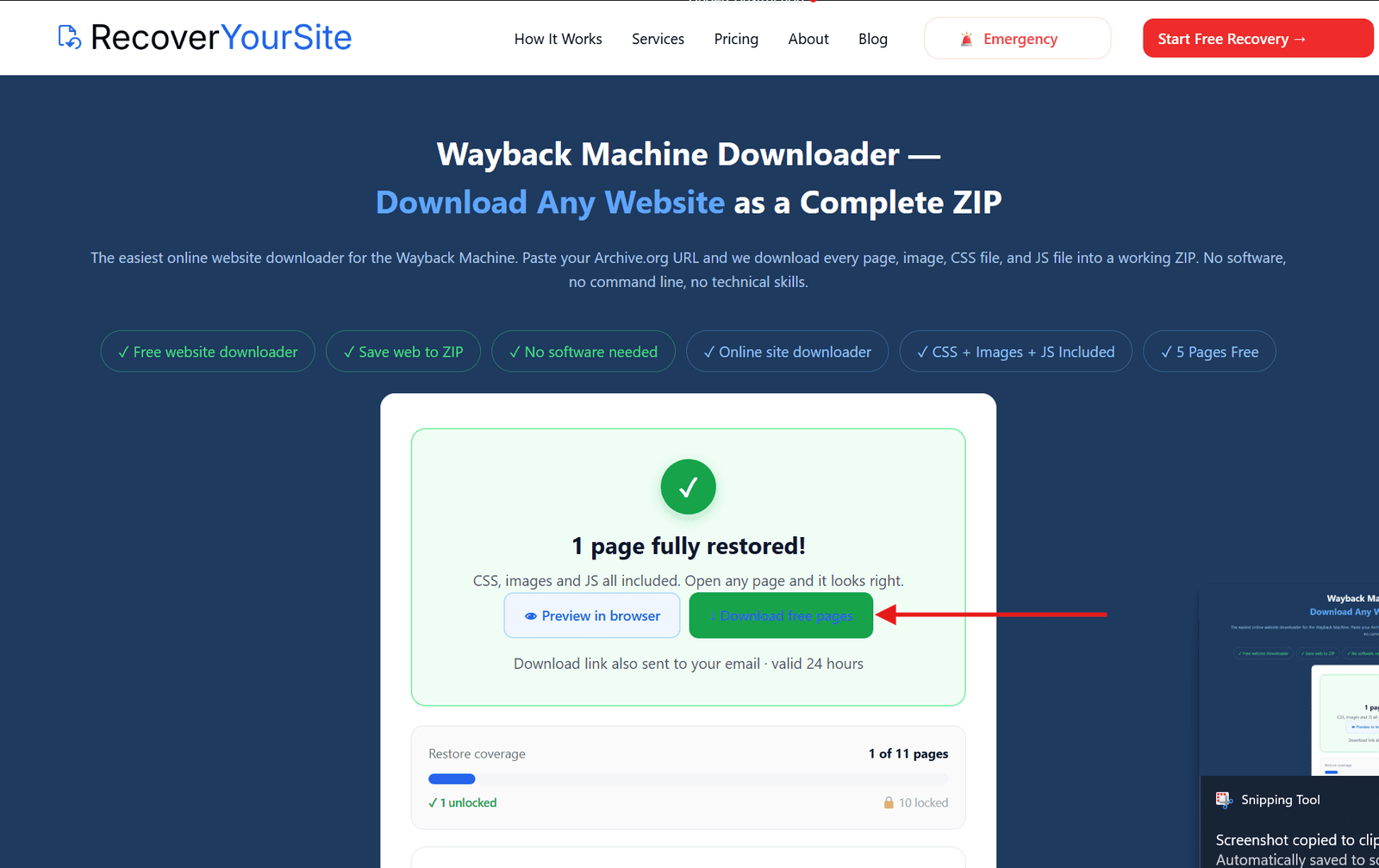
Inside the ZIP, you’ll find the same folder structure your original site had, index.html, your CSS and JS files, an images folder, and so on, all with working relative links between them.
Step 5: Get your site live again
Unzip the file and open index.html directly in your browser first, to confirm everything looks right before uploading anywhere.
- Log into your hosting account’s file manager, or connect via FTP.
- Upload the extracted files into your domain’s root folder, usually named
public_htmlor similar. - Visit your domain in a browser to confirm the site loads correctly.
Because the internal links were already rewritten during the restore, the site should work immediately on any standard hosting provider, no special server configuration required.
Restoring a WordPress site specifically? A ZIP of static HTML files isn’t a WordPress installation. If your original site ran on WordPress and you want it live on WordPress again, not just as static files, our WordPress website recovery service can handle the rebuilding process. If your original site ran on WordPress and you want it live on WordPress again, not just as static files, see our WordPress Rebuild service, which handles the database and plugin setup for you.
Doing this manually vs using RecoverYourSite
Doing it yourself
- ✕ Save each page from Archive.org one at a time
- ✕ Manually track down every CSS, JS and image URL
- ✕ Fix broken internal links by hand, page by page
- ✕ Hours to days of work for anything beyond a few pages
Using RecoverYourSite
- ✓ Paste one URL, the crawler finds every linked page
- ✓ All assets downloaded and matched automatically
- ✓ Internal links rewritten for you, site works immediately
- ✓ Minutes for small sites, done for you at any size
Ready to restore your own site? Paste your Archive.org URL and get your first 5 pages back free.
Start free restore →Troubleshooting common issues
Frequently asked questions
Do I need to know coding or use a command line?
No. Everything runs from your browser. You paste a URL and email, and the tool handles the crawling, downloading, and link fixing.
What if my domain has multiple archived snapshots?
Pick the most recent snapshot that still shows your site working correctly. Older snapshots sometimes have more missing assets.
Will the downloaded site work exactly like the original?
It will match the archived snapshot exactly, since that’s the only version of the site that still exists. Anything not captured by Archive.org can’t be recovered.
Do I need a specific type of web hosting to upload the ZIP?
No, the restored files are standard HTML, CSS, and JavaScript, so they work on any hosting provider without special server requirements.