Hacked Website? Here is Your Complete Recovery and Prevention Checklist
Website hacked? Follow our step-by-step malware removal and website hack restoration guide to recover safely and prevent future attacks.
If your website has been hacked, take it offline or put it in maintenance mode immediately, then change every password (hosting, WordPress admin, database, FTP). Scan for malware with a security plugin or your host’s malware scanner, remove infected files and unfamiliar admin users, restore from a clean backup taken before the infection if one exists, and update every theme, plugin, and core file to the latest version. Once the site is clean, request a review from Google Safe Browsing if it was flagged, and put monitoring and hardening measures in place so it doesn’t happen again.
Finding out your website has been hacked is one of the worst moments a site owner can experience. Search rankings can vanish overnight, visitors get warning screens instead of your homepage, and sensitive customer data may be at risk. The good news is that most hacked websites can be fully recovered, and RecoverYourSite has helped thousands of site owners do exactly that. This guide walks through the complete process: what to do in the first hour, how to actually remove the malware, and how to lock things down for good.
How to Tell If Your Website Has Actually Been Hacked

Before diving into recovery, it’s worth confirming what you’re dealing with. Not every strange behavior on a website is a hack, sometimes it’s a plugin conflict, a caching issue, or a server hiccup. But there are telltale signs that point specifically to a compromise, and recognizing them quickly can save you hours of cleanup later and limit the damage to your rankings and reputation.
Common signs of a hacked website include unfamiliar admin accounts appearing in your user list, a browser warning like “This site may be hacked” or “Deceptive site ahead,” a sudden spike in outbound traffic or server resource usage, spam content or strange redirects showing up on pages you didn’t write, unexpected pop-ups or ads injected into your theme, search results showing pharmaceutical or gambling spam for your domain, your site being blacklisted by Google Safe Browsing or your hosting provider, and emails from your host warning about malware or abuse complaints.
If you’re seeing any combination of these, treat it as a confirmed compromise and move straight into containment. Waiting to “see if it gets worse” almost always makes recovery harder, because malware tends to spread across files and can create hidden backdoors that let attackers back in even after you think you’ve cleaned things up.
Step-by-Step Recovery Process
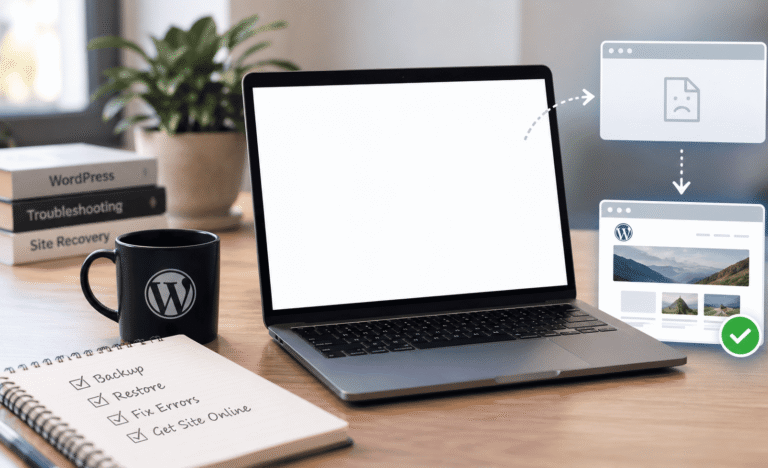
Recovering a hacked website follows a logical sequence: contain the damage, identify the entry point, remove the infection, restore clean content, and verify everything is actually fixed before bringing the site back fully online. Skipping steps or rushing the cleanup is the most common reason sites get reinfected within days of being “fixed.”
1. Check If Your Website Has Been Hacked
Before taking action, check whether your website has actually been compromised. Start with IsItHacked.com to scan your website for potential signs of malware, suspicious redirects, and other security issues. This gives you an initial indication of whether your site may be infected.
2. Check Google Safe Browsing Status
Next, visit Google Safe Browsing Transparency Report and enter your website URL to check whether Google has identified it as dangerous.
If Google flags your website for malware, phishing, or other security threats, take the warning seriously and proceed with the cleanup steps below. Keep in mind that a clean result from either checker does not guarantee that your website is completely free of malware.
3. Contain the Damage Immediately
Put your site into maintenance mode or take it offline temporarily. This limits further damage to your visitors and prevents search engines from indexing more infected pages. Many hosts offer a one-click “suspend” or maintenance toggle for exactly this situation. If your host has already suspended the account due to abuse reports, don’t panic this is a normal precaution and most hosts will help you through cleanup before reactivating.
4. Change Every Password and Access Key
Assume every credential associated with your site has been compromised. Change your WordPress admin password, database password, FTP/SFTP credentials, hosting account password, and any API keys or secret keys stored in configuration files. Also revoke and reissue any application passwords or third-party integrations connected to your site. Use unique, strong passwords for each, password reuse is one of the most common ways sites get compromised in the first place.
5. Scan and Identify the Infection
Use a reputable security scanner to identify infected files. Many hosts offer built-in malware scanning, and WordPress security plugins can scan your file system and database for known malicious patterns, unfamiliar code injected into theme files, and suspicious scheduled tasks. Pay close attention to files with recent modification dates that you didn’t personally edit, as well as unfamiliar PHP files in your uploads folder, uploads directories should never contain executable PHP files.
6. Remove Malicious Code and Backdoors
This is the step people most often get wrong. Deleting the obvious spam page isn’t enough, attackers frequently leave backdoors: small snippets of code hidden in theme functions files, plugin files, or even the database itself that let them regain access after cleanup. The safest approach is to replace WordPress core files, themes, and plugins entirely with fresh copies from the official source, rather than trying to manually edit out infected code. Only your uploads folder and wp-config.php (with new secret keys) typically need to be preserved and carefully reviewed.
7. Restore From a Clean Backup (If Available)
If you have a backup from before the infection occurred, restoring it can be faster and more reliable than manual cleanup, provided you’re certain that backup predates the compromise. Check file modification dates and any known timeline of when strange behavior started. After restoring, still change all passwords and update everything to the latest version before reconnecting the site to the internet, since the original vulnerability that let the attacker in is still unpatched otherwise. If no backup exists, website restoration services can handle the cleanup and recovery for you.
7. Update Everything and Remove Unused Software
Outdated plugins and themes are the number one entry point for website hacks. Update WordPress core, every active plugin, and your theme to their latest versions. Then go a step further: delete any plugins or themes you’re not actively using, even if they’re deactivated, since dormant software with known vulnerabilities is still a risk sitting on your server.
8. Verify and Request a Blacklist Review
Before fully relaunching, rescan the site to confirm it’s clean. If your site was flagged by Google Safe Browsing or another blacklist service, submit a review request through Google Search Console (Security Issues section) or the relevant blacklist authority once you’ve confirmed the infection is fully removed. These reviews typically take anywhere from a few hours to a few days.
Preventing Future Hacks: A Practical Checklist

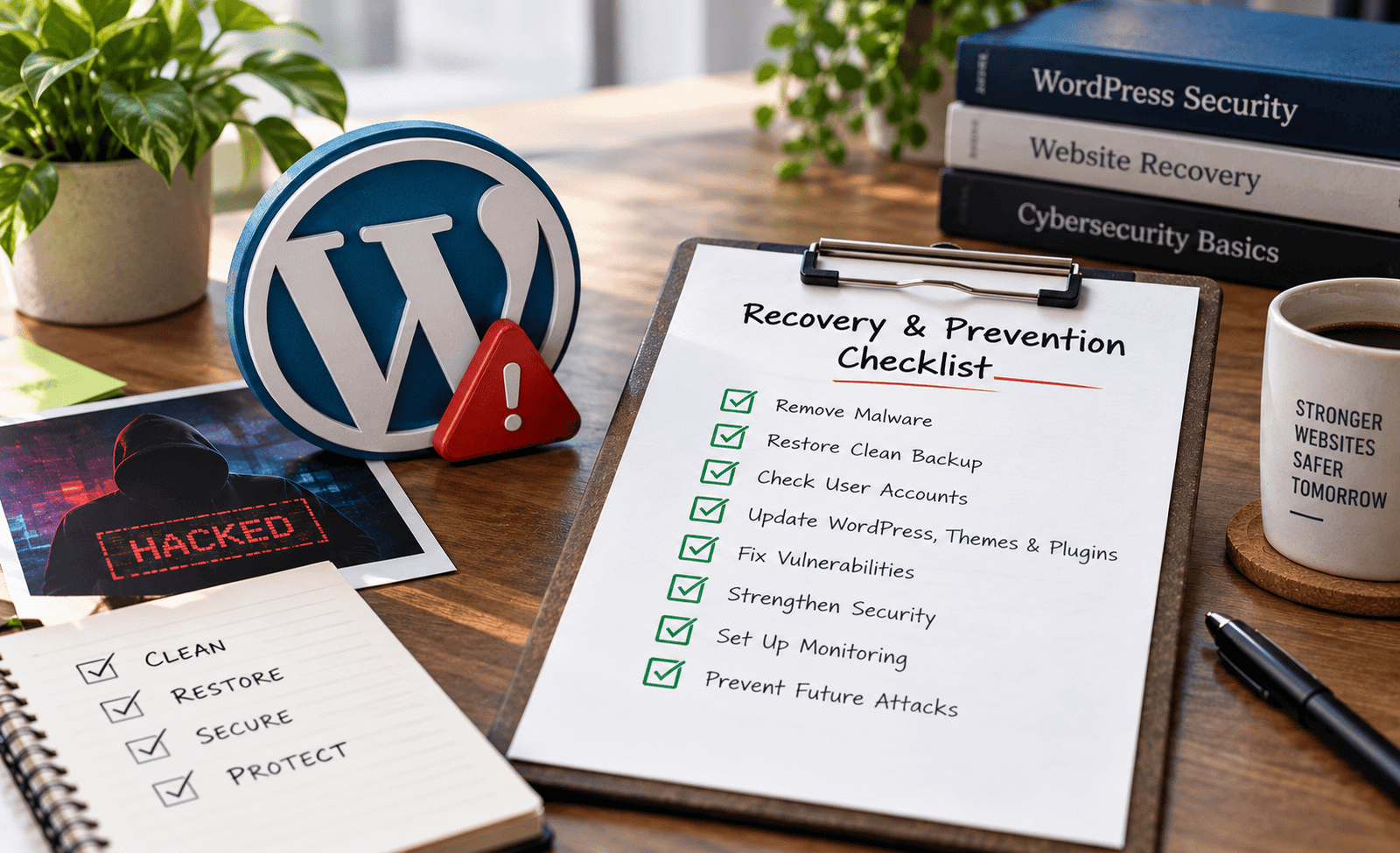
Cleaning up a hacked site is only half the job, the real win is making sure you never have to do it again. Use this checklist as an ongoing maintenance routine, not a one-time task.
- Keep WordPress core, themes, and plugins updated at all times, and remove anything you’re not actively using.
- Use strong, unique passwords and enable two-factor authentication for all admin accounts.
- Install a reputable security plugin with a web application firewall and malware scanning.
- Limit login attempts and consider changing the default /wp-admin login URL.
- Set up automated, offsite backups on a daily or weekly schedule, and periodically test restoring them.
- Restrict file permissions so PHP files can’t be executed from the uploads directory.
- Remove unused user accounts and regularly audit who has admin access.
- Keep your hosting account’s own login and any FTP/SFTP credentials separate from WordPress credentials.
- Monitor site integrity with file-change alerts so you learn about unauthorized edits within hours, not months.
- Use an SSL certificate and keep it current, some attacks specifically exploit unencrypted connections.
Recovery Method Comparison
| Method | Best For | Time Required | Difficulty |
|---|---|---|---|
| Restore from clean backup | Sites with a recent, verified pre-infection backup | 1–3 hours | Low |
| Security plugin auto-clean | Common malware signatures, moderate infections | 1–4 hours | Low to Moderate |
| Manual file and database cleanup | No backup available, custom or unusual malware | 1–3 days | High |
| Professional malware removal service | Persistent reinfections, sensitive data exposure | 1–5 days | Low effort, higher cost |
| Full rebuild from scratch | Severe, unrecoverable corruption or very old, unmaintained sites | Several days to weeks | High |
Whichever path you take, the priority order stays the same: contain, clean, verify, and harden. A hacked website is a stressful experience, but it’s also a solvable one, and a site that comes out the other side properly secured is often more resilient than it was before the attack.
Frequently Asked Questions
How long does it take to recover a hacked website?
A straightforward cleanup with a clean backup available can take as little as an hour or two. A deep infection requiring manual file-by-file review, or a site with no clean backup, can take anywhere from a day to a week, especially if you’re also waiting on a blacklist review from Google or another authority.
Can I recover a hacked site without a backup?
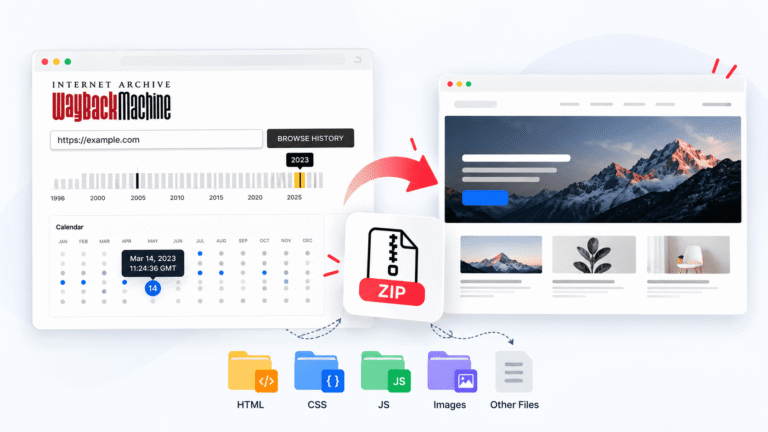
Yes, though it’s more labor-intensive. Without a backup, recovery relies on scanning and manually removing malicious code, reinstalling clean copies of WordPress core, themes, and plugins, and carefully checking the database for injected spam content or rogue admin accounts. In cases where content was deleted entirely, tools like RecoverYourSite’s Wayback Machine downloader can sometimes help you recover lost pages
Will my SEO rankings recover after a hack?
In most cases, yes. Once the site is clean, malicious content is removed, and any blacklist flags are cleared, search engines typically restore rankings over a period of days to a few weeks. Submitting your sitemap again through Search Console and requesting reindexing of key pages can help speed up the recovery.
Should I hire a professional to clean up a hacked website?
If you’re not comfortable working with files, databases, or server settings, or if the infection appears sophisticated (persistent backdoors, reinfection after cleanup, or a site with sensitive customer data), a professional malware removal service is a reasonable investment. For simpler cases, a defaced page, a handful of spam links, an outdated plugin exploit, most site owners can handle cleanup themselves by following the steps above carefully.